How do I send a network log to support?
How to capture and send a network log to SecureMailMerge support, what it contains, how it helps diagnose issues, and how it stays confidential.
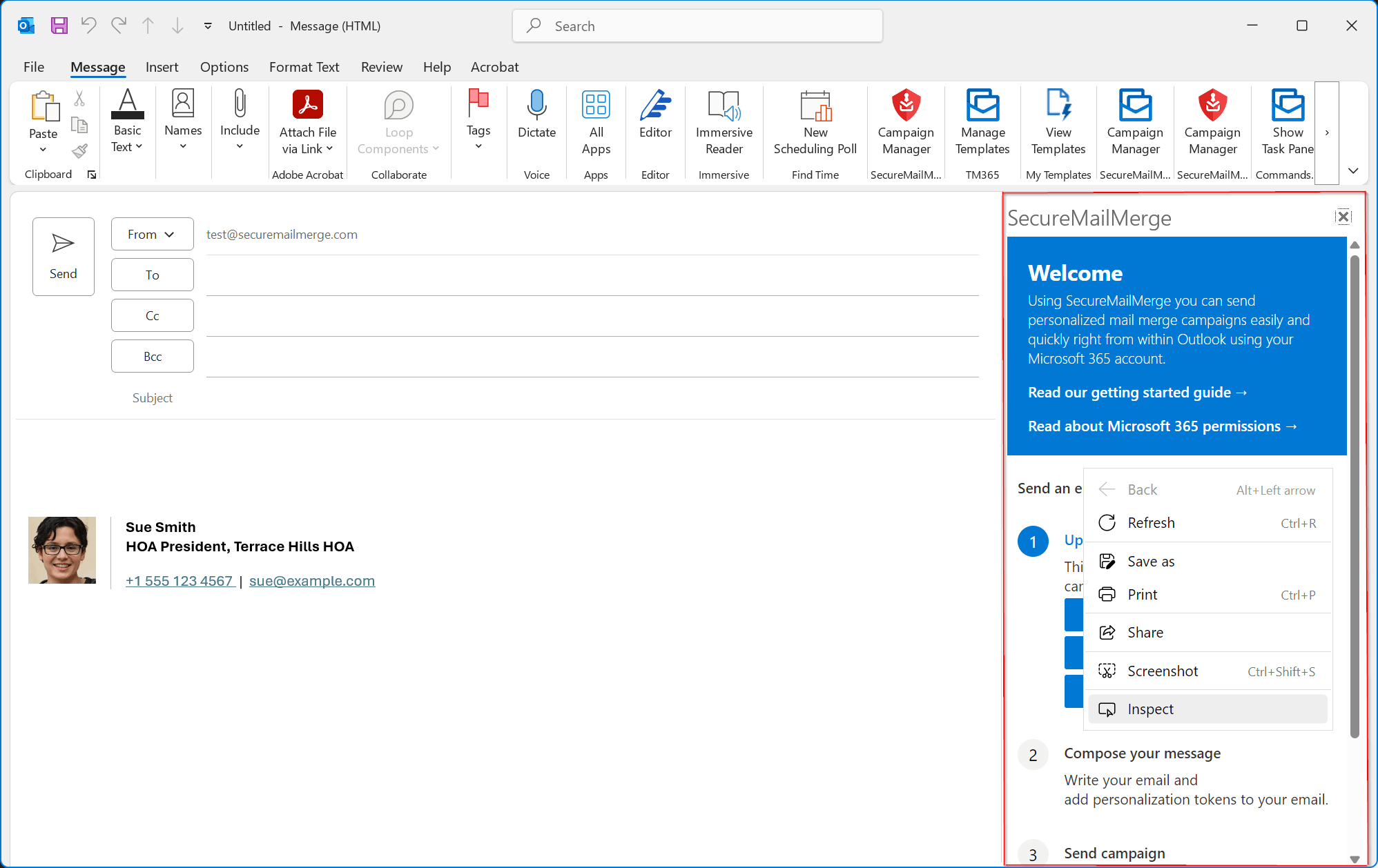
Start a new email and open SecureMailMerge. In the plugin window (the area marked by the red box), right-click to open a context menu. Click “Inspect”.
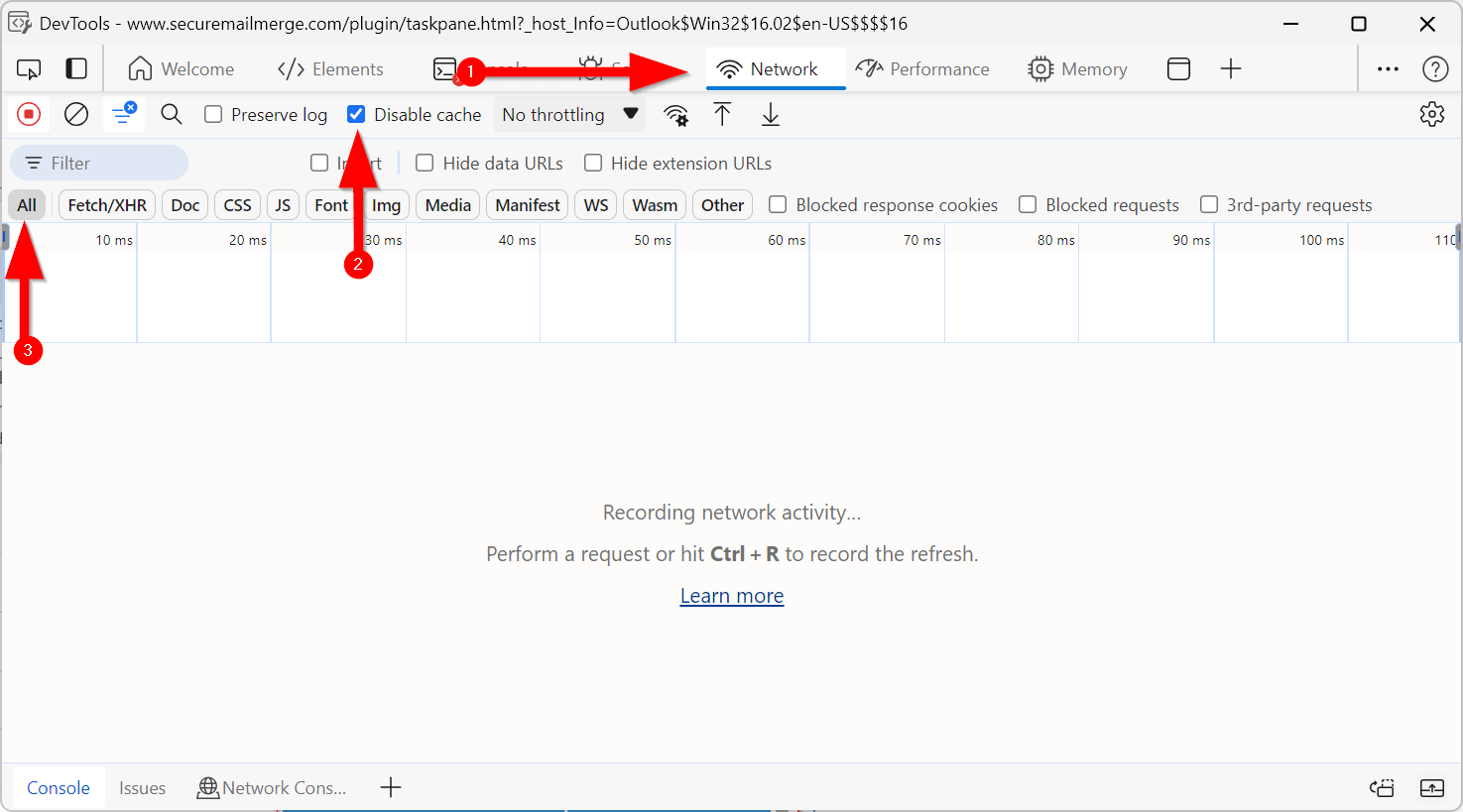
This will open a window titled “DevTools”, where you will find a tab called “Network”. Click it, then make sure “Disable cache” is enabled and the “All” button is dark grey.
Leaving that window open, switch back to Outlook.
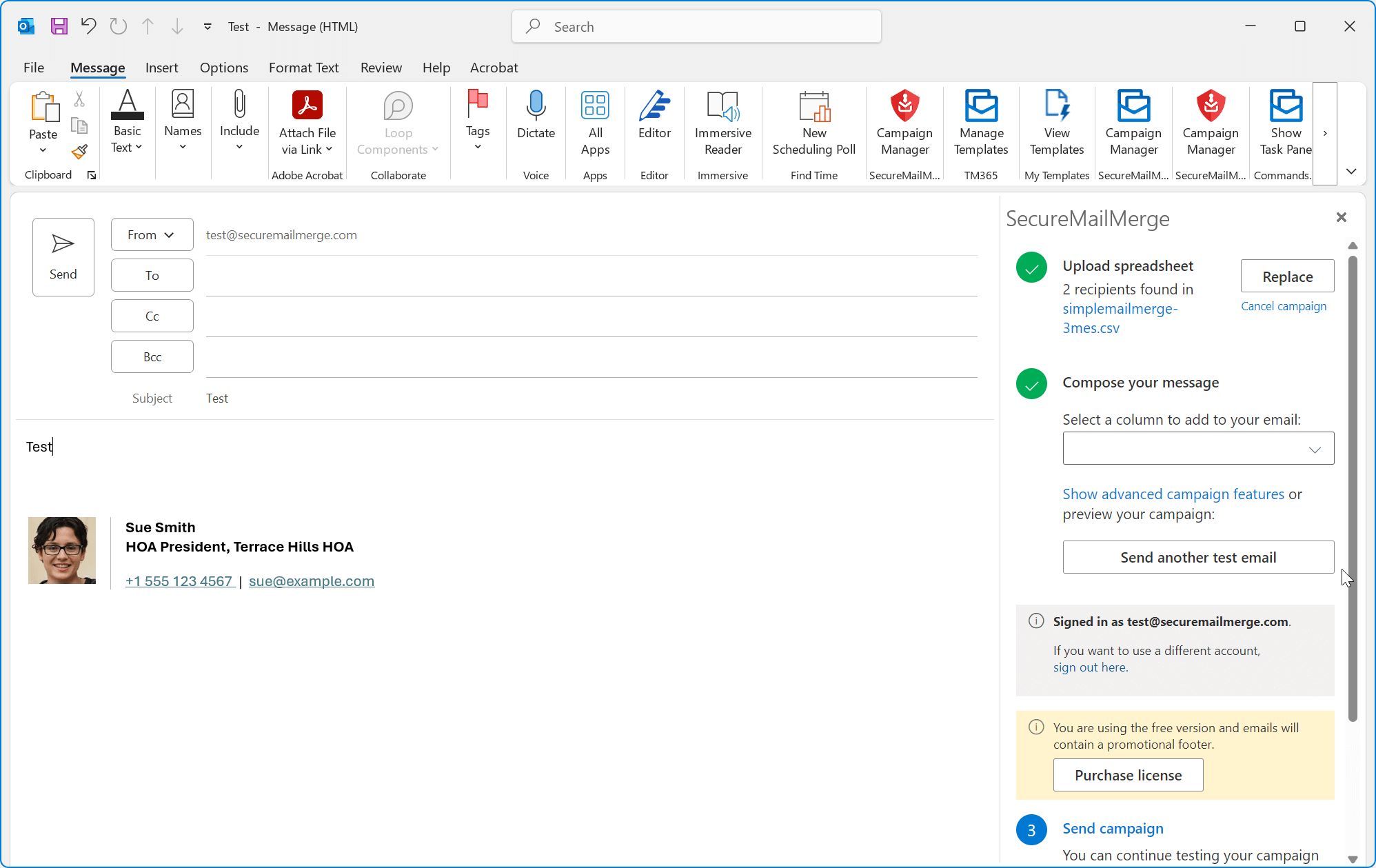
Perform your actions in SecureMailMerge until you encounter the issue. This usually means adding a test subject and body, uploading the spreadsheet, clicking “Send test message” and waiting a couple of seconds for the result or error to appear.
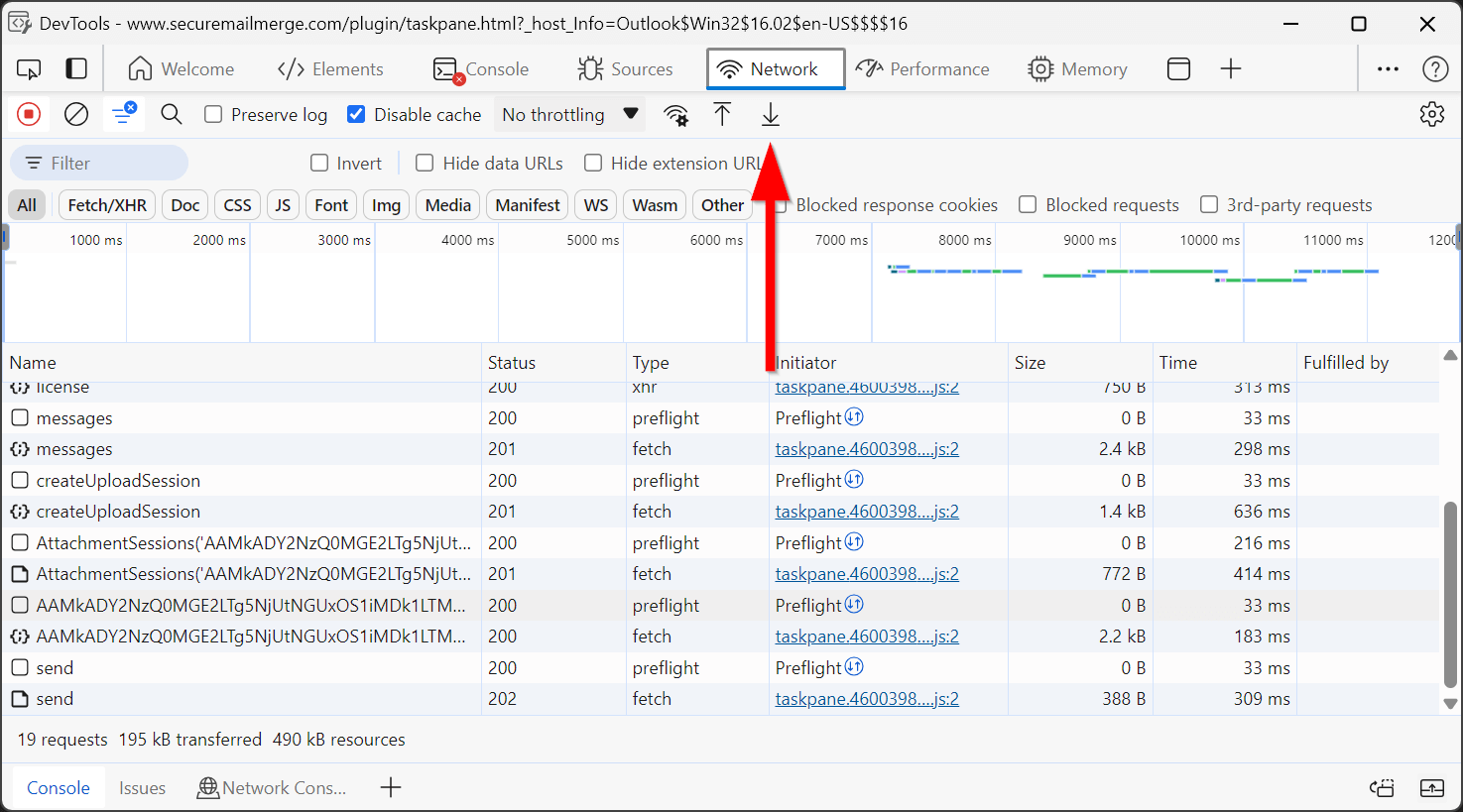
Next, return to the “DevTools” window and find the downward-facing arrow.
This will download a HAR file containing diagnostic information that you can send to our support team.
Ready to try SecureMailMerge yourself?
SecureMailMerge for Outlook
Runs inside Outlook, with no external app needed.
Free version, no credit card. A license removes the promotional footer.