How do I add CC or BCC recipients to my mail merge?
SecureMailMerge lets you easily add CC or BCC recipients to your Outlook mail merge, including options to add multiple or hidden recipients.
Sending each email to the same CC or BCC recipients
You can add the same CC or BCC (or multiple) recipients to each generated email. Simply add them to the appropriate boxes in your template email.
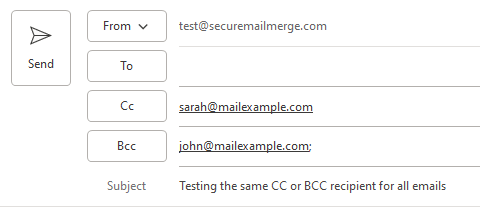
Each generated email will then carry these values.
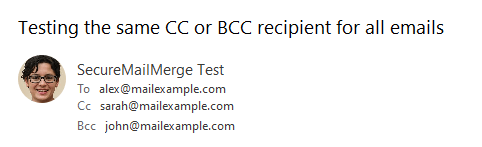
Note: CC and BCC addresses typed into the template also receive the test email. Add them after testing, or let those recipients know the test is coming.
Adding an individual (or multiple) CC or BCC recipients to each email via the spreadsheet
If you add a CC or BCC column to your spreadsheet, you can add one or more email addresses to each row, and the emails will be sent with those CC/BCC values. If you want to add multiple addresses, separate them with a semicolon.
Note: Spaces are currently not allowed between email addresses. Separate them using a semicolon like this: [email protected];[email protected]

Each generated email will then carry these values.
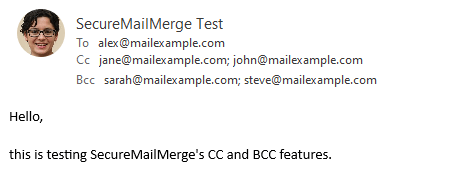
Note: In the test email, CC or BCC values from the spreadsheet are replaced by your own email address, so you can see they were picked up without anyone else receiving the test.
Hybrid approach: sending to a general CC/BCC and also individual CC/BCC email addresses
If you want to add both a general CC/BCC value to each email but also specific individual CC/BCC values to each email just follow both steps above. Add the general ones to the template email and the individual ones to the spreadsheet columns.
The resulting email will merge both the general CC/BCC and the values from the spreadsheet.
Need more help?
Email support with what you were trying to do, what happened and the exact error message. Do not include real recipient data.