Advanced options in SecureMailMerge explained
A reference for every advanced campaign option in SecureMailMerge for Outlook: message options, schedule settings, and mail headers.
This page describes the advanced options screen as a whole. Each individual setting also has its own guide, linked below, which covers that setting in more depth.
Opening the advanced options
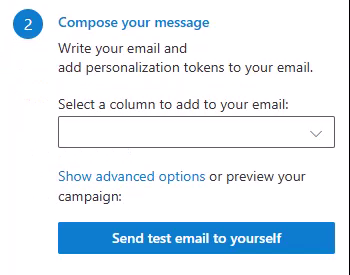
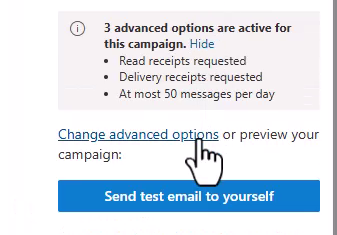
In the campaign manager, select the link above the send button. It reads “Show advanced options” when no advanced option is active, and “Change advanced options” once at least one is, so you may see either wording.
What is currently active
Because your settings carry over between campaigns, the campaign view tells you how many advanced options are in force before you open the screen: “3 advanced options are active for this campaign.” Select “Show” to list them, with one line per option, such as “Read receipts requested”, “Delivery receipts requested” or “At most 50 messages per day”. Check that list before you send: it is the quickest way to catch a setting you carried over from last time and no longer want.
Your settings are remembered
Advanced options are remembered between campaigns. Whatever you set is reapplied to your next campaign and survives replacing the spreadsheet, so a configuration you use every week only has to be entered once. The screen says so at the top, above the first group.
The start date is the exception. A date picked for one campaign should not silently apply to the next, so “Start sending on” is left empty each time.
The three groups
The screen opens from the campaign manager and returns to it with the “Return to campaign manager” link at the top. It is arranged in three groups, each one expanding when you select its heading, with every label sitting above the control it belongs to.
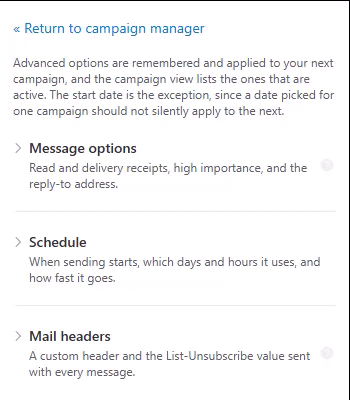
Message options
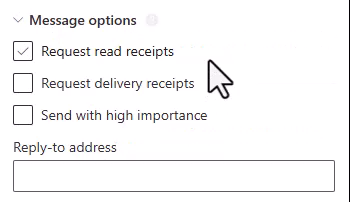
Read and delivery receipts, high importance, and the reply-to address.
- “Request read receipts”, “Request delivery receipts” and “Send with high importance”. See read receipts, delivery receipts and high importance. Unlike the schedule, these do apply to your test email.
- “Reply-to address”, so replies land somewhere other than your sending address. Leave it empty to reply to the sending mailbox as usual. See setting a reply-to address.
Schedule
When sending starts, which days and hours it uses, and how fast it goes. The group opens with a one-sentence summary of your current settings, so you can read the whole schedule at a glance:
Sending on any day at any time, up to 50 per day.
Below the summary the settings are split into two subgroups, “When to send” and “How fast”.
“When to send” holds, in this order:
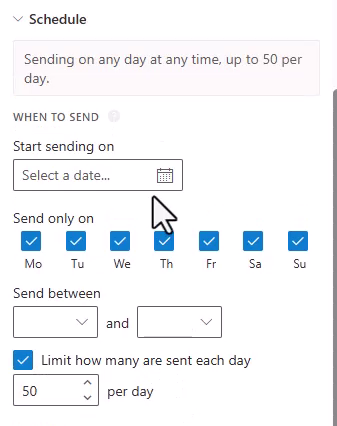
- “Start sending on”, the date the campaign begins. By default sending starts immediately. See scheduling for a specific day.
- “Send only on”, seven checkboxes, Monday first, restricting the campaign to the weekdays you tick. All seven are ticked by default. See sending on certain days and hours.
- “Send between”, two dropdowns giving the daily time window. Both are empty by default, which means any time of day. See sending on certain days and hours.
- “Limit how many are sent each day”, a checkbox plus a number of messages “per day”, filled in with 50 when you tick it. See sending on certain days and hours.
“How fast” holds, in this order:
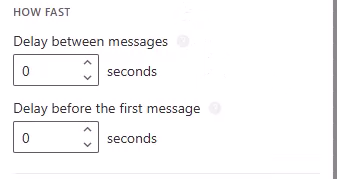
- “Delay between messages”, in seconds, up to 10 minutes. See adding a delay between messages.
- “Delay before the first message”, in seconds, up to 10 minutes. This is the setting previously labelled “seconds preview delay”. See previewing emails before sending.
The schedule settings combine rather than override each other. A message is scheduled at the first moment that falls inside your time window, on a day you have selected, and under that day’s limit.
Mail headers
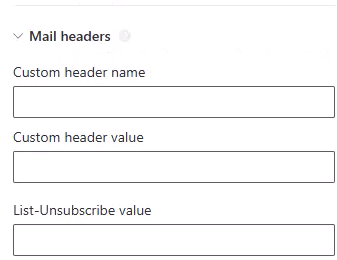
A custom header and the List-Unsubscribe value sent with every message.
- “Custom header name” and “Custom header value”, for driving your own Exchange mail flow rules. Custom header names must start with
x-. - “List-Unsubscribe value”, which makes Gmail, Outlook.com and Apple Mail show an Unsubscribe link at the top of your message.
Both are covered in adding custom headers and List-Unsubscribe, including how to read either value from a spreadsheet column.
Things that apply to all of these settings
- Test emails ignore the schedule. Test emails always send immediately. The message options are the exception: receipts and high importance do apply to your test email.
- Outlook only needs to stay open while the campaign is generated. SecureMailMerge generates the messages in your Drafts folder while Outlook is open, then hands them to Microsoft 365 with a send time using Outlook’s own scheduled send. Microsoft 365 sends them on schedule whether or not Outlook or your computer is on.
- A paused campaign keeps its schedule. Resuming continues the original plan rather than restarting the schedule from the moment you resumed.
- Scheduled times are hard to see in Classic Outlook. To check what a message is set to do, open the mailbox in New Outlook or Outlook on the Web.
Need more help?
Email support with what you were trying to do, what happened and the exact error message. Do not include real recipient data.