Know how directly from the Microsoft 365 mail merge experts
How to Send a Mail Merge from a Shared Mailbox in Outlook
By Alex Duggleby · Founder, SecureMailMerge
You can send a mail merge from a shared mailbox in Outlook if your Microsoft 365 admin has given you Send As permission on it. Word’s built-in mail merge can’t do it properly, because it has no From field. An Outlook add-in such as SecureMailMerge can: open a new email in your own mailbox, change the From address to the shared mailbox, then run the merge. Recipients see the shared address and replies land in the shared inbox.
That is how an IR lead sends quarterly updates as ir@, a membership office sends renewal reminders as members@, and a regional rep sends as uk@ so the account stays with the region.
Word mail merge
SecureMailMerge
What Word’s mail merge can do, and why it isn’t enough
Word’s mail merge has no From field. It always sends through the default account in classic Outlook for Windows or Outlook for Mac, which is your own mailbox. The only workaround is to add the shared mailbox as a separate account in Outlook (this needs Full Access on it and doesn’t work everywhere), make it the default, run the merge, then switch everything back. It is fiddly, easy to forget to undo, and Word’s merge does not work with New Outlook at all (see mail merge in New Outlook).
That is why you need an add-in that lets you set the From address on the merge itself.
What SecureMailMerge does instead
SecureMailMerge runs inside Outlook, so you set the From address in the email window like for any normal email, and the whole merge goes out as the shared mailbox. It works in classic Outlook, New Outlook, Outlook on the web and Outlook for Mac.
One rule to remember: install and start SecureMailMerge from your own mailbox, not from inside the shared mailbox. SecureMailMerge doesn’t support being started inside a shared mailbox, and a shared mailbox has no licence of its own and is not something you sign in to. So every shared mailbox mail merge is really a licensed user sending as that mailbox. The shared mailbox help page tracks the current status.
You (licensed user)
SecureMailMerge
Recipients
What you need: Send As permission
Your admin must give you Send As permission on the shared mailbox. It makes an email look exactly like it came from the shared address; the alternative, Send on Behalf, shows recipients “Your Name on behalf of” the mailbox, so ask for Send As. A short request you can paste to IT:
Please grant me Send As permission on the shared mailbox [email protected]. I need to send personalised emails from that address with an Outlook add-in. Optional: please also enable saving a copy of messages sent as this mailbox in its Sent Items.
If you cannot get Send As yet, you can still send from your own address and set a reply-to address pointing at the shared mailbox.
Step by step: mail merge as a shared mailbox with SecureMailMerge
You can do this on the free version, which adds a short promotional footer (see free version details and pricing); the licence is checked against your own signed-in address, so to remove the footer assign the licence to your own address. The shared mailbox needs no licence.
Step 1: Confirm you have Send As permission
Ask your admin for Send As on the shared mailbox. Without it, SecureMailMerge stops with “Your account is not allowed to send as the address in the From field.”
Step 2: Start a new email in your own mailbox
SecureMailMerge is installed on your personal mailbox. Click New Email in your own mailbox, not in the shared mailbox folder list, and open the SecureMailMerge campaign manager from the ribbon or Apps menu.
Step 3: Change the From address to the shared mailbox
If the From field is hidden, show it first (Options tab, or More actions in Outlook on the web), then pick the shared address or choose “Other email address” and type it. The shared mailbox help page has the details for each Outlook version.
Step 4: Load your recipient list
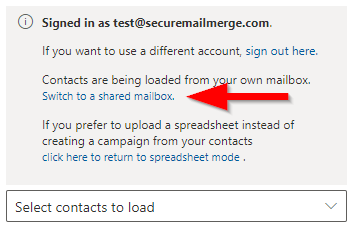
Click “Upload spreadsheet” and select your Excel or CSV file. If the team’s contacts live in the shared mailbox, create the campaign from Outlook contacts instead, click “Switch to a shared mailbox.”, type the address under “What is the email of the mailbox?” and click “Load contacts”.
Step 5: Write and personalise the email
Write the subject and body in the email window and insert your spreadsheet columns as tokens such as {{FirstName}}. Attachments and images work as in any other campaign. Send a test email to yourself and check that the sender shows the shared mailbox.
Step 6: Start sending the campaign
Click “Start sending campaign”. Each recipient gets an individual email from the shared address, and replies go to the shared inbox.
Where the sent copies end up
Because the add-in sends from your account, the copies land in your own Sent Items. Your admin can turn on a setting for the shared mailbox so a copy is also saved in the shared mailbox’s Sent Items; without that, put the shared mailbox in the BCC field of your campaign and every message lands in its inbox instead (see mail merge with CC and BCC). If a send fails with a permission error, see fix “does not have the right to send mail”.
Alias or shared mailbox?
An alias is an extra address on one person’s mailbox, so replies land in that person’s inbox; a shared mailbox has its own inbox that several people watch. Use a shared mailbox for a team address and an alias for one person’s other address. Both work the same way in SecureMailMerge: see send a mail merge using an email alias.
For everything else a merge from Outlook can do, see the full guide to mail merge in Outlook.
Frequently asked questions
Can you do a mail merge from a shared mailbox?
Yes, if you have Send As permission. Start a new email in your own mailbox, set From to the shared mailbox and run the merge with SecureMailMerge. Recipients see the shared address and replies go to the shared inbox.
Do I need Send As or Send on Behalf?
Ask for Send As. It makes emails look like they came from the shared mailbox alone, while Send on Behalf shows “Your Name on behalf of” the mailbox.
Can SecureMailMerge run directly inside a shared mailbox?
No. SecureMailMerge doesn’t support being started inside a shared mailbox; Outlook add-ins install on your own mailbox, so start it there. Send as the shared mailbox from your own mailbox instead; recipients and replies behave the same.
Where do the sent emails end up?
In your own Sent Items folder by default. Your admin can turn on a setting for the shared mailbox so a copy is also saved in the shared mailbox’s Sent Items.
Can Word’s mail merge send from a shared mailbox?
Only with a workaround in classic Outlook for Windows or Outlook for Mac: add the shared mailbox as an account (this needs Full Access and doesn’t work everywhere), make it the default, merge, then switch back. Word has no From field and does not work with New Outlook.
Does this work in New Outlook and on Mac?
Yes. SecureMailMerge runs in classic Outlook, New Outlook, Outlook on the web and Outlook for Mac. In each one you change the From address in the email window before starting the campaign.
Enjoyed this article?
We have a whole library of useful articles for you to read
Show me the library of Outlook articles