Know how directly from the Microsoft 365 mail merge experts
Can you CC or BCC someone in a mail merge?
By Alex Duggleby · Founder, SecureMailMerge
Yes, you can CC or BCC someone in a mail merge, but not with Word’s email merge, which has no CC or BCC field. An Outlook add-in such as SecureMailMerge adds the same CC or BCC to every email, or a different CC or BCC per recipient from a spreadsheet column, while each person still receives their own personalized message.
Word mail merge does not support CC or BCC
Word’s Finish & Merge, then Send E-mail Messages dialog has no box for a CC or BCC address, and Microsoft’s own instructions say so: “You cannot CC or BCC other recipients” (Microsoft Support: use mail merge to send bulk email messages).
Word email merge
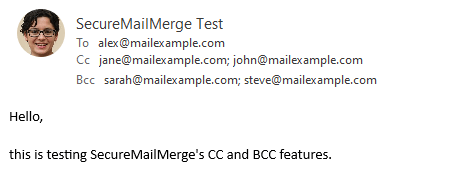
SecureMailMerge in Outlook
Bcc: [email protected]
How to add CC or BCC to a mail merge in Outlook
Simple: install SecureMailMerge, a free add-in for Outlook. It adds the same CC or BCC to every email, a different one per recipient from your spreadsheet, or both in one campaign. Unlike Word’s email merge, which has no support for New Outlook or Outlook on the web, it works in classic Outlook, New Outlook, Outlook for Mac and Outlook on the web. The free version has every feature and adds a short promotional footer. Here’s how, in five steps:
Step 1: Install SecureMailMerge and open a new email
Install SecureMailMerge from Microsoft AppSource, then click “New Email” in Outlook. Start SecureMailMerge from the Apps menu of the new email.
Step 2: Upload your spreadsheet
Under “Upload spreadsheet”, click “Use spreadsheet” and pick your Excel, CSV or Numbers file. It needs a column called To with one recipient address per row, plus any columns you want to merge into the email.
Step 3: Add the same CC or BCC to every email
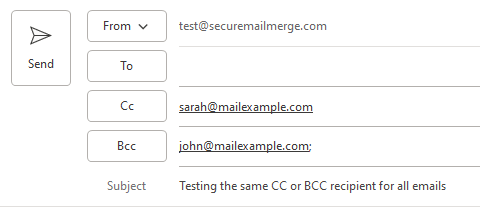
Type the address into the CC or BCC box of your template email, exactly as you would for a normal message. Every generated email carries that CC or BCC, while the To line is replaced with each row’s recipient.
Step 4: Add a different CC or BCC per recipient
Add a column headed CC and/or a column headed BCC to your spreadsheet (capitalization doesn’t matter). Put that row’s address in the cell, or several addresses in one cell separated by semicolons with no spaces. Leave the cell empty for rows that need no copy.

Both at once
Step 5: Send a test, then start the campaign
Click “Send test email to yourself” and check the result. CC and BCC addresses typed into the template also receive the test email, while CC and BCC cells from your spreadsheet are replaced by your own address. Then click “Start sending campaign”. When it finishes, click “Download report”: the report lists the actual CC and BCC addresses used for every sent row.
The click-by-click help page is add CC or BCC recipients to a mail merge, and the send report guide explains the SMM_CC and SMM_BCC columns.
CC and BCC in many-to-one campaigns
In many-to-one mode, several spreadsheet rows for the same recipient become one email, and every unique CC and BCC address from those rows is copied once.
3 rows for Anna
| To | Attachments | CC |
|---|---|---|
| [email protected] | invoice-101.pdf | [email protected] |
| [email protected] | invoice-102.pdf | [email protected] |
| [email protected] | invoice-103.pdf | [email protected] |
1 email
Cc: [email protected]; [email protected]
Attachments: 3 invoices
mark@ appears in two rows but is copied once.
Common uses for CC and BCC in a merge
The account manager
You, a CRM or a shared mailbox
A second contact
Whoever you copy sees exactly what the main recipient sees, including every merged value from that row.
How many people can you BCC in Outlook?
The Outlook BCC limit is not a separate number. Microsoft counts To, CC and BCC together: the per-message recipient limit is “the maximum number of recipients allowed in the To:, Cc:, and Bcc: fields for a single email message” (Microsoft Learn: Exchange Online limits). The default is 500 recipients per message, which admins can set anywhere from 1 to 1,000. Across all three fields, a Microsoft 365 mailbox can reach at most 10,000 recipients per rolling 24 hours, at up to 30 messages per minute. Your organization can also set a lower limit for external recipients. Outlook.com with a Microsoft 365 subscription allows 500 per message and 5,000 per day.
500
recipients per message
To, CC and BCC together. Admins can set 1 to 1,000.
10,000
recipients per day
Rolling 24 hours, across all emails.
30
messages per minute
Sending rate per mailbox.
A distribution group from your organization’s address book counts as one recipient. A personal contact group saved in your Contacts folder counts each member separately.
Distribution group (address book)
Contact group (your Contacts)
Two more details: Microsoft Learn lists the per-message limit only as “customizable up to 1000”, and the 500 default comes from the Exchange Team’s post on customizable recipient limits, so your tenant may set it lower. Outlook.com also caps people you have never emailed before at 1,000 per day, and free or new accounts get lower, variable limits (Microsoft Support: sending limits in Outlook.com). For what happens when you hit these numbers, see Outlook email sending limits.
Do CC and BCC count toward sending limits?
Yes. Every CC and BCC address counts as a recipient, both toward the per-message limit and toward the 10,000 recipients per day.
A 300-row merge where each email also copies one colleague uses 600 recipients, not 300:
300-row merge, 1 CC each
A row with three CC addresses spends four recipients. To set your daily cap, divide the daily recipient limit by the recipients per email:
10,000 recipients per day ÷ 2 recipients per email = 5,000 emails per day
SecureMailMerge can cap how many emails go out per day with “Limit how many are sent each day”. That cap counts messages, while Microsoft counts recipients, so set it lower when your emails carry CCs or BCCs.
For everything else a merge from Outlook can do, see the full guide to mail merge in Outlook.
Frequently asked questions
Can you CC someone on a Word mail merge?
No. Microsoft’s own instructions for Word’s Send E-mail Messages merge say you cannot CC or BCC other recipients. The dialog only offers To, Subject line, Mail format and which records to send, with no CC or BCC box, so you need an Outlook add-in instead.
Can you BCC in a mail merge?
Yes, with an Outlook add-in like SecureMailMerge. Type a BCC address into the template email to copy every message, or add a BCC column to your spreadsheet for a different hidden recipient per row.
How do I add a different CC for each recipient?
Add a column headed CC to your spreadsheet and put that row’s address in it. For several addresses, put them in the same cell separated by semicolons with no spaces, for example [email protected];[email protected].
How many people can I BCC in Outlook?
With a Microsoft 365 work account, one message takes 500 recipients across To, CC and BCC by default, up to 1,000 if your admin raises it, and 10,000 recipients per rolling 24 hours.
Is a mail merge better than BCC?
For personalized or client-facing emails, yes. A BCC blast is one impersonal email, a single slip that pastes the list into To exposes every address, and spam filters distrust one message with a long hidden recipient list. A mail merge sends each person an individual email addressed to them by name. BCC is fine only for a quick, identical notice to a few colleagues. See how to send a mass email individually in Outlook.
Does the CC recipient see the personalized content?
Yes. CC and BCC recipients receive the same individual email as the main recipient, including the merged values from that row, so only copy people who are allowed to see that data.
Enjoyed this article?
We have a whole library of useful articles for you to read
Show me the library of Outlook articles