Part of the complete guide to mail merge in Outlook
Mail Merge with Attachments in Outlook
Yes, you can send a mail merge with attachments in Outlook: the same files for every recipient, or a different attachment per person, like individual invoices or certificates. You just cannot do it with the built-in Word method. Here is how it works.
Can you add attachments to a mail merge?
The classic Word mail merge ("Finish & Merge → Send Email Messages") cannot add file attachments. Its "send as attachment" format only attaches the merged Word document itself, with an empty email body. That is why "can you add an attachment to a mail merge" is one of the most asked Outlook questions on Microsoft's own forums.
With the SecureMailMerge add-in, attachments are a built-in feature with two modes:
- Same attachments for everyone. Attach files to your campaign and every recipient receives them, up to the full Microsoft 365 size limit.
- An individual attachment per recipient. A column in your spreadsheet decides which file each person gets.
Both modes can be combined in the same campaign.
Send your first mail merge with attachments today
Free version with a promotional footer. Works in Classic Outlook, New Outlook, Mac, and Web. Your spreadsheet stays on your computer and the mail leaves from your own mailbox.
How it works
- Install SecureMailMerge from Microsoft AppSource and open a new email in Outlook.
- Upload your Excel spreadsheet (or pick recipients from your contacts).
- Attach files to the campaign, write your personalized email, and send. Each recipient gets an individual email with the attachments included.
Because SecureMailMerge sends through your own Microsoft 365 mailbox, the emails are normal Outlook emails: they come from your address, replies land in your inbox, and sent messages appear in your Sent Items.
A different attachment for each recipient
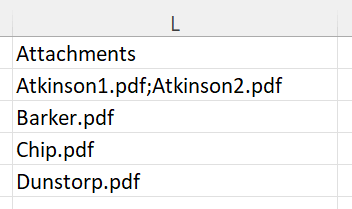
This is the feature the Word method famously lacks. Add a column called Attachments to your spreadsheet and enter the filename each recipient should get:
-
One file:
invoice_1042.pdf -
Multiple files, separated by semicolons:
invoice_1042.pdf; terms.pdf - Leave the cell empty for recipients who get no file.
When you upload the spreadsheet, SecureMailMerge detects the column and asks you to upload the referenced files. It checks that every filename in the spreadsheet has a matching file before you can send, so nobody receives an email with a missing attachment.
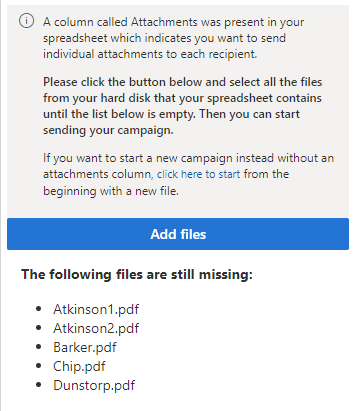
Setup reference: set up individual attachments. Prefer a guided walkthrough? Follow the step-by-step attachment tutorial.
Common use cases
- Invoices: each customer receives their own PDF invoice, with the amount and invoice number also merged into the email body.
- Certificates and diplomas: send every course participant their personal certificate.
- Contracts and HR documents: individual salary letters or contract renewals, sent from your own mailbox instead of a third-party service.
- Reports: per-client or per-department reports attached to a personalized summary email.
After sending, the send report lists exactly which attachments went to each recipient, so you have a complete record.
Attachment size limits
SecureMailMerge supports the full Microsoft 365 message size. By default that is 35 MB per message including attachments; administrators can raise it up to 150 MB, though recipients' mail servers and clients may enforce lower limits of their own. Email encoding adds roughly a third, so a 24 MB file consumes about 32 MB of the limit. For bigger files, share a OneDrive or SharePoint link instead and merge an individual link per recipient.
Why the Word method cannot attach files
Word's email merge builds each message from the merged document and offers no step where a file could be attached. The closest built-in option, sending the merge "as attachment", attaches the Word document itself and leaves the email body empty, which is rarely what anyone wants. Common workarounds involve VBA macros, which many organizations block. And in New Outlook and Outlook on the Web, the Word merge does not run at all. A native add-in that builds each message itself, attachments included, avoids the whole problem.
Frequently asked questions
Can you add an attachment to a mail merge?
Yes, with a mail merge add-in. The built-in Word mail merge cannot add file attachments, but SecureMailMerge attaches the same files for everyone or an individual file per recipient, controlled by an Attachments column in your spreadsheet.
Can you send different attachments to each recipient?
Yes. Add a column called Attachments to your spreadsheet and enter the filename each recipient should receive, for example invoice_1042.pdf. Semicolons separate multiple files, and empty cells mean no attachment for that recipient. When you upload the spreadsheet, SecureMailMerge asks you to upload the referenced files and matches them to each row.
Can you mail merge with a PDF attachment?
Yes. Any file type that Outlook accepts works (blocked types like executables are the exception). PDFs are the most common choice for invoices, certificates, and contracts.
How large can mail merge attachments be?
SecureMailMerge supports the full Microsoft 365 message size: 35 MB by default including attachments, and up to 150 MB if your administrator has raised the limit. Recipients’ mail servers may accept less, and attachments grow by about a third in transit, so a 24 MB file uses roughly 32 MB of the limit.
Does it work in New Outlook, on Mac, and in the browser?
Yes. SecureMailMerge is a native Microsoft add-in and works in Classic Outlook, New Outlook, Outlook for Mac, and Outlook on the Web, with the same attachment features everywhere. The Word-based merge cannot add attachments in any version.
Is there a limit on the number of attachments?
The practical limit is the Microsoft 365 message size (35 MB by default, up to 150 MB if your admin raises it; recipients’ servers may accept less), and Exchange Online caps a single message at 250 attachments. Daily recipient limits still apply; see Outlook sending limits for the numbers.
Enjoyed this article?
We have a whole library of useful articles for you to read
Show me the library of Outlook articles