Know how directly from the Microsoft 365 mail merge experts
Mail Merge with Individual Attachments in Outlook
By Alex Duggleby · Founder, SecureMailMerge
Sending personalised emails with individual attachments, a different invoice, report, or document for each recipient, isn’t possible with the classic Word mail merge. Word can attach a single file to every message, but it has no way to send different files to different people.
The SecureMailMerge add-in solves this by reading an Attachments column from your spreadsheet and matching each file to the correct recipient. This guide walks through the full process step by step. If you prefer to watch, see the YouTube video.
Works in New Outlook
This method uses the SecureMailMerge add-in, which works in Classic Outlook, New Outlook, Outlook for Mac, and Outlook on the Web, not the Word-based mail merge. See the full mail merge in Outlook guide for a comparison of all methods.
Sending out personalized emails with individual attachments can be a tedious task. But, with Microsoft Outlook 365 and a free plugin called Secure Mail Merge, it can become a breeze. In this blog post, we will walk you through the process step by step. If you prefer you can also watch the video on YouTube.
Preparing Your Data Spreadsheet
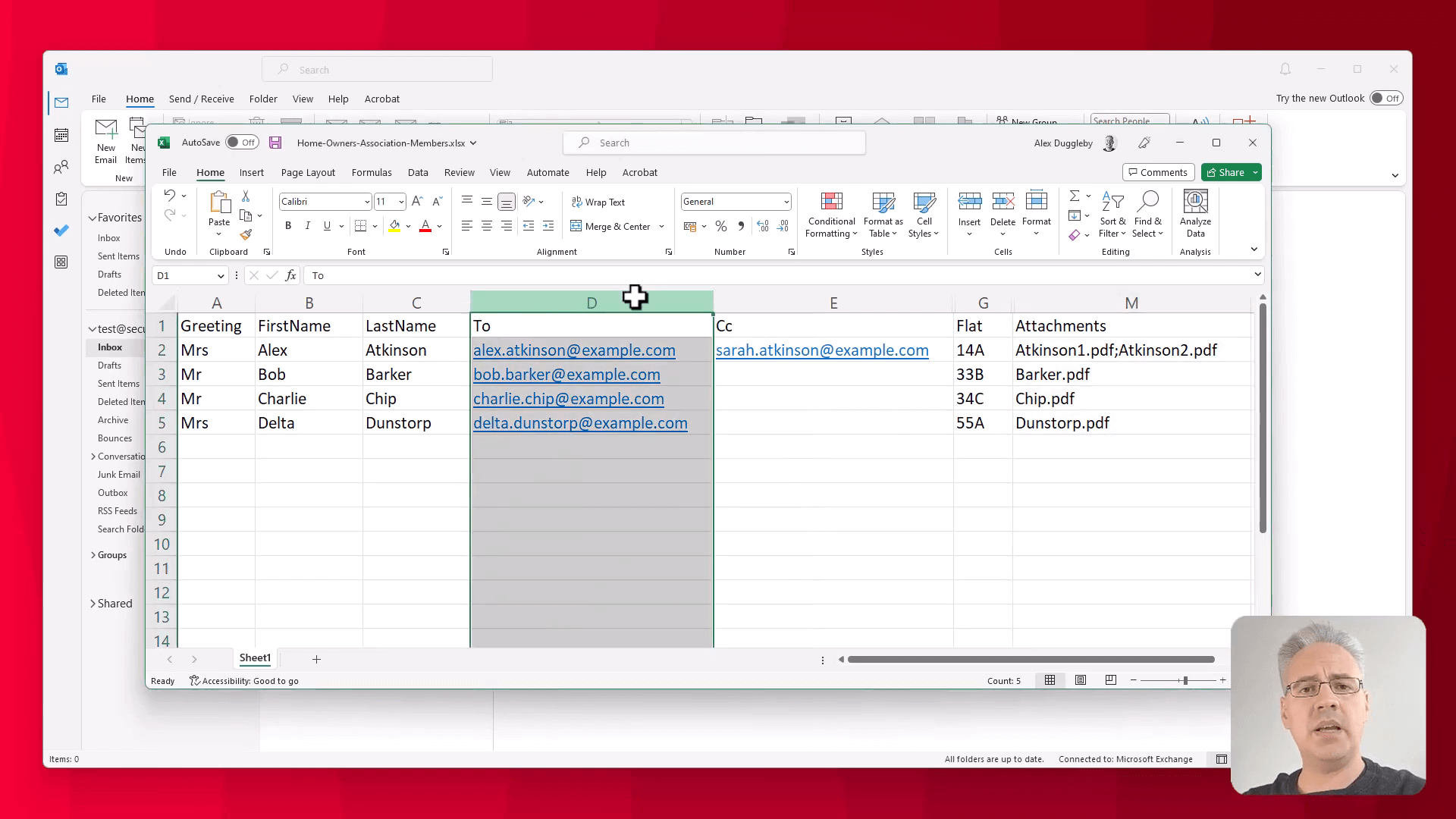 The first step in any mail merge is to create a spreadsheet containing the information that you’d like to send out to your customers. For example, this may include fields like:
- First Name
- Last Name
- Email Address (To column)
- CC Email Address (optional)
- BCC Email Address (optional)
- Any other information you’d like to include, such as a flat number, invoice number, or any other custom fields.
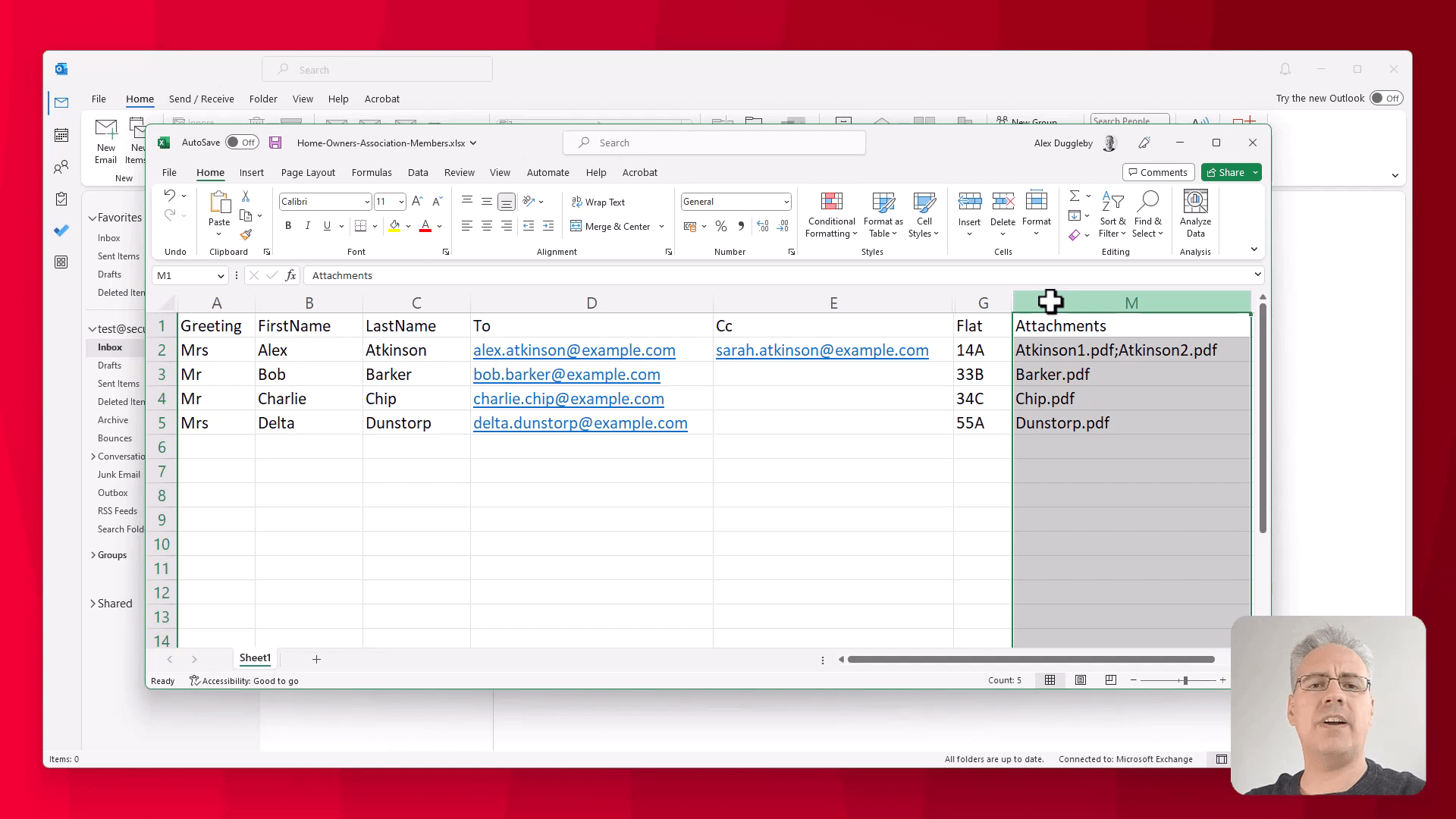
Additionally, you should include a column containing the filenames of the files you want to attach for each recipient. You can add multiple files to a single email by separating them with a semicolon, as shown in the example:
Installing the Secure Mail Merge Plugin
Switch over to Outlook, and follow these steps to install the Secure Mail Merge plugin:
- Click on “Get Add-ins.”
- Search for “Secure Mail Merge.”
- Click the “Add” button.
The plugin is now installed and will appear when you click on “New Email.”
Using the Plugin to Send Your Mail Merge
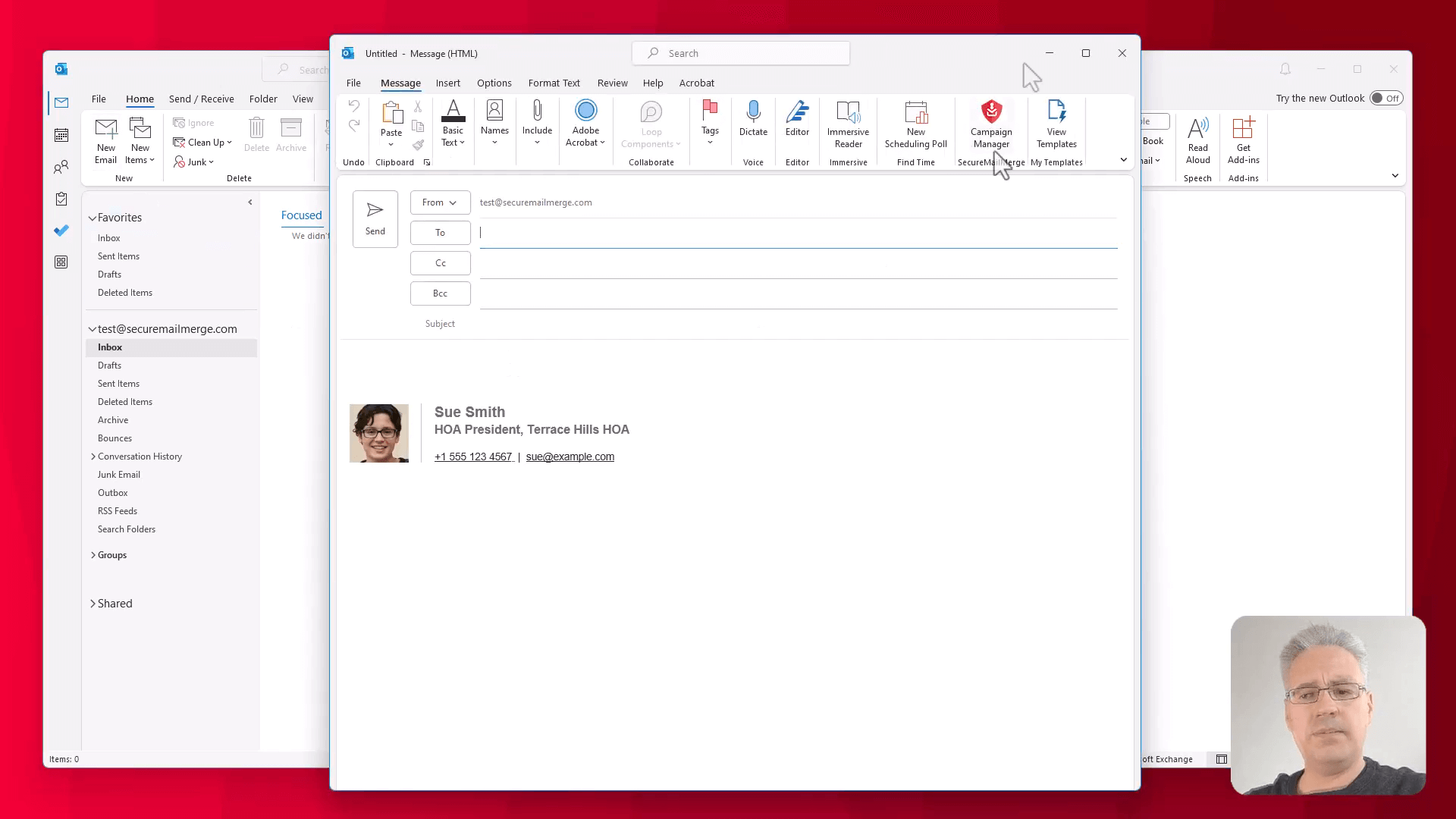 With the plugin installed, you can start setting up your mail merge:
- Click on the Secure Mail Merge icon in the “New Email” window.
- Choose whether you’d like to use a spreadsheet or send a mail merge to people in your address book. In this case, we are using a prepared spreadsheet.
- Select the spreadsheet file you prepared earlier.
Next, upload the attachments:
- The plugin will look for the “Attachments” column in your spreadsheet and prompt you to upload the necessary files.
- Click on “Add Files” and navigate to the folder containing the files you want to attach.
- Select all the files using Ctrl+A or by selecting them with the mouse.
- Click on “Open” to add the files to the mail merge campaign.
With your data and attachments prepared, it’s time to write your email:
-
Write your email subject and body, making sure to include your custom fields using the dropdown menu provided by the plugin.
- For instance:
Invoice for Flat {{Flat Number}}. - In the email body, you can add fields like “Dear [Greeting] [Last Name]” and any other custom content.
- For instance:
-
You can also format the email as you wish, including adding signatures, images, etc.
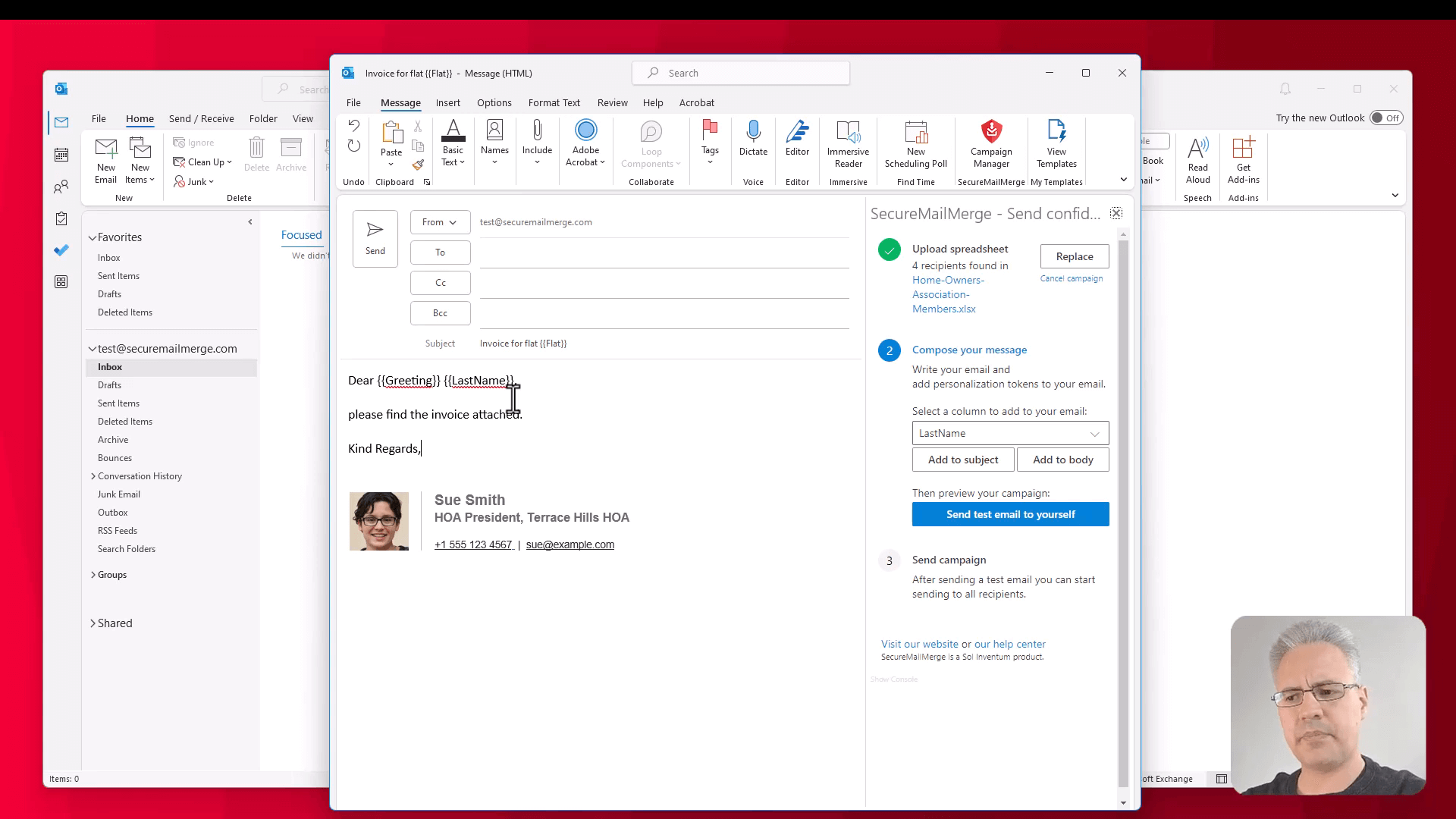 Before sending out the mail merge, it’s always a good idea to test it beforehand:
- Click the “Test Email” button in the plugin to send a test email to yourself.
- Authenticate with your Microsoft 365 account when prompted.
- Check your inbox to verify that the first row of your spreadsheet is used to populate the email, and the attachments are properly included.
Finally, when you’re satisfied with your test email, you can proceed to send the mails:
- Click on “Start Sending Campaign” in the plugin.
- Monitor the progress as the emails are sent and the attachments are added.
- Head over to your “Sent Items” folder in Outlook to see all the emails sent by the plugin.
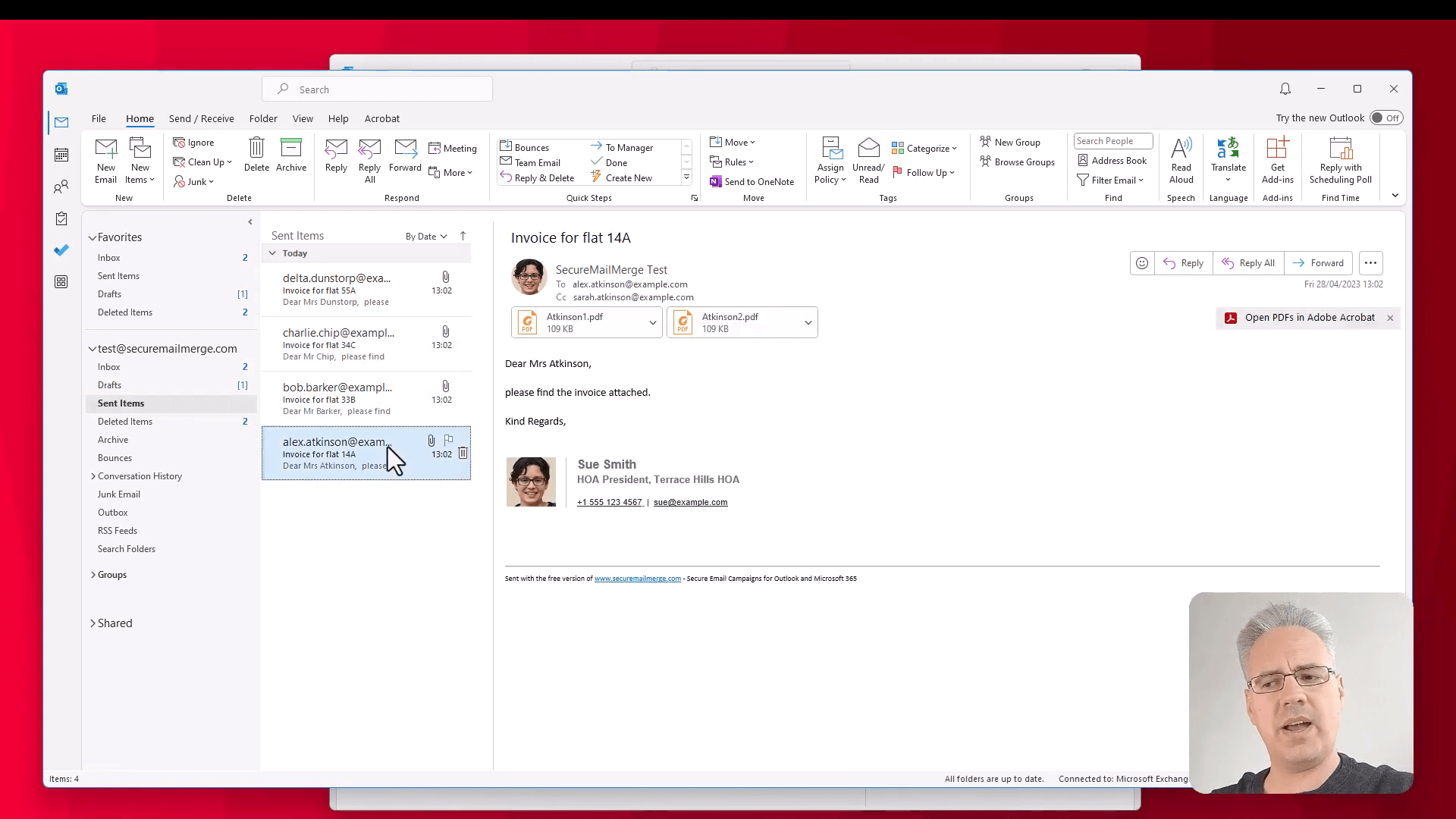 And that’s it! You’ve now successfully sent a mail merge with individual attachments using Microsoft Outlook 365 and the Secure Mail Merge plugin.
Does this work in New Outlook?
Yes. The SecureMailMerge add-in works in New Outlook, Classic Outlook, Outlook for Mac, and Outlook on the Web. The classic Word-based mail merge does not support individual attachments or New Outlook, this method does both.
FAQ
Can I attach multiple files to the same recipient?
Yes. In the Attachments column, list multiple filenames separated by semicolons: invoice.pdf;report.pdf
What file types can I attach? Any file type that Outlook allows as an attachment: PDF, DOCX, XLSX, images, ZIP archives, and more. Very large files may be blocked by the recipient’s mail server.
What happens if a filename in my spreadsheet doesn’t match an uploaded file? SecureMailMerge will warn you before sending. It checks that every filename referenced in the spreadsheet has a matching uploaded file.
Can I send attachments with Classic Outlook’s Word mail merge? No. Word’s built-in email merge cannot add file attachments. Its “send as attachment” format only attaches the merged Word document itself, with an empty email body. For real attachments, individual or shared, you need the SecureMailMerge add-in.
How large can the attachments be? Outlook limits individual attachments based on your mail server configuration. Microsoft 365 Business accounts typically allow attachments up to 35 MB per email. Check with your IT administrator for your specific limit.
Related guides:
Enjoyed this article?
We have a whole library of useful articles for you to read
Show me the library of Outlook articles