Installing SecureMailMerge
You install the SecureMailMerge plugin via the Apps menu regardless of which operating system (Windows, Mac or Web) you are working on.
Step 1. Open the Office Add-In Store from the Apps Menu
Locate the “Apps” or “All Apps” icon on your ribbon menu and click it to open the installed apps. Head to the bottom and click “Add Apps” to open the AppSource Office Add-In Store.
Note: If you do not have an Apps menu but rather a “Get Add-Ins” button please see this page instead.
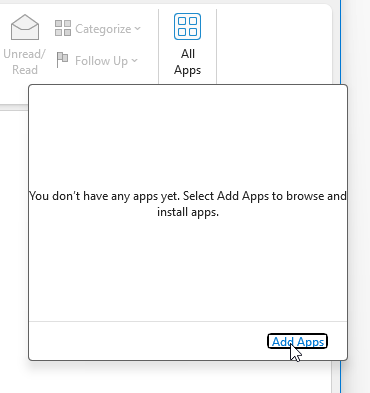
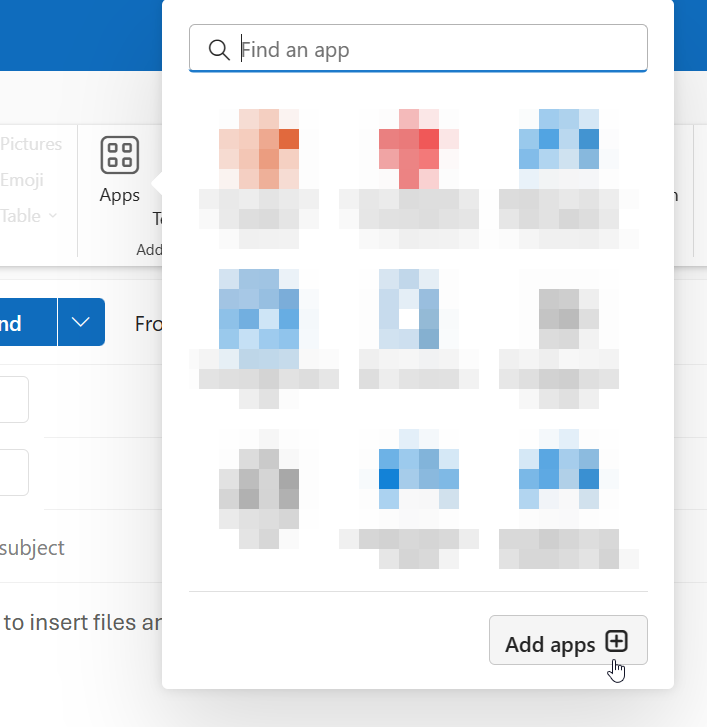
Step 2. Search for SecureMailMerge in the Office App Store
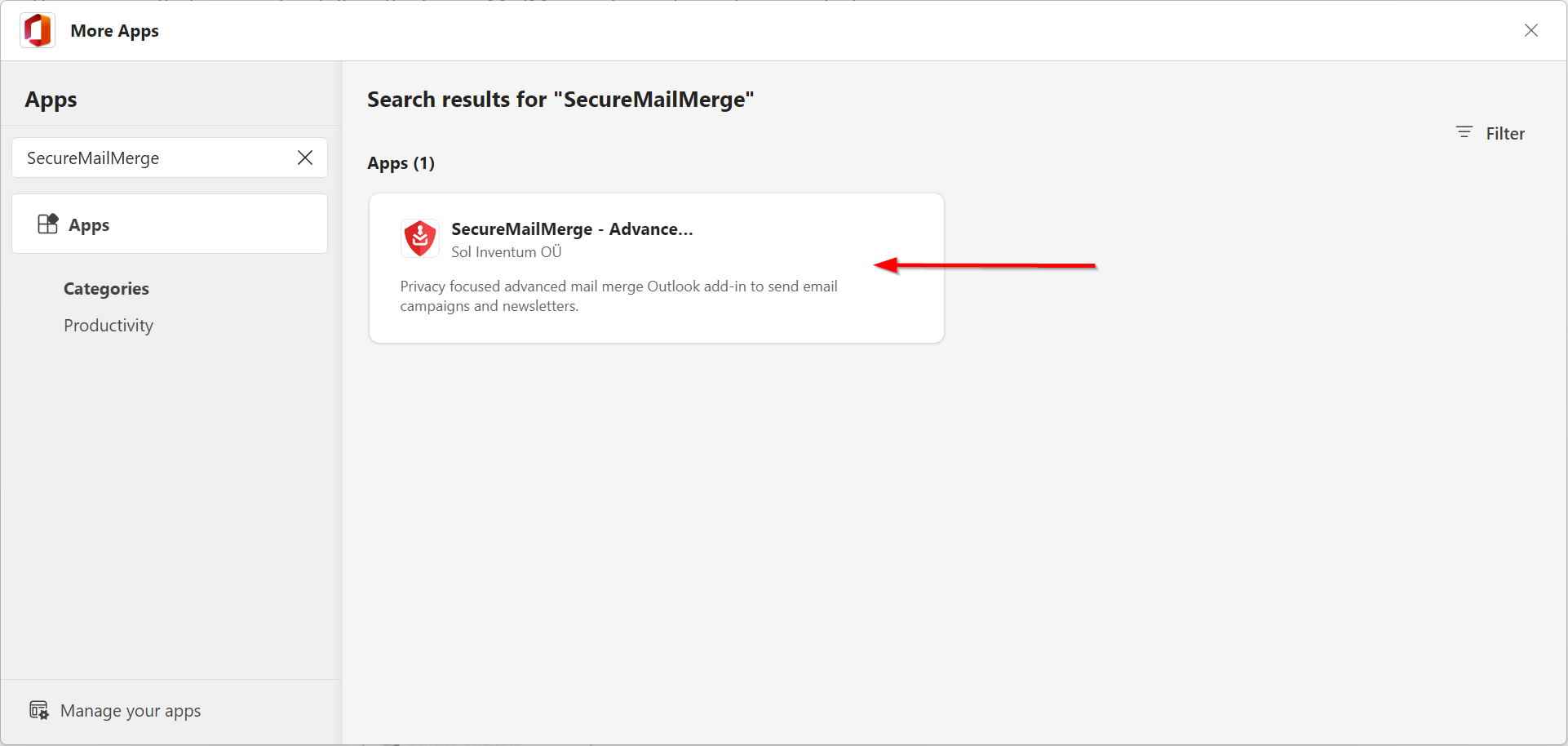
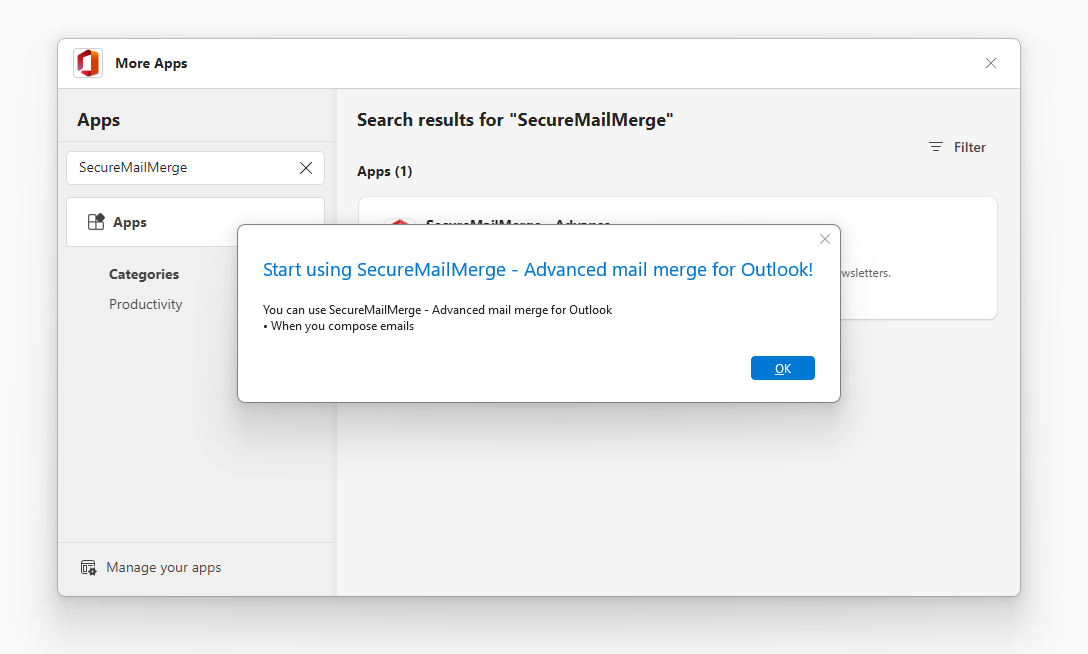
In the left search box type “SecureMailMerge” and wait a few seconds for the application box to appear. Click on the application box.
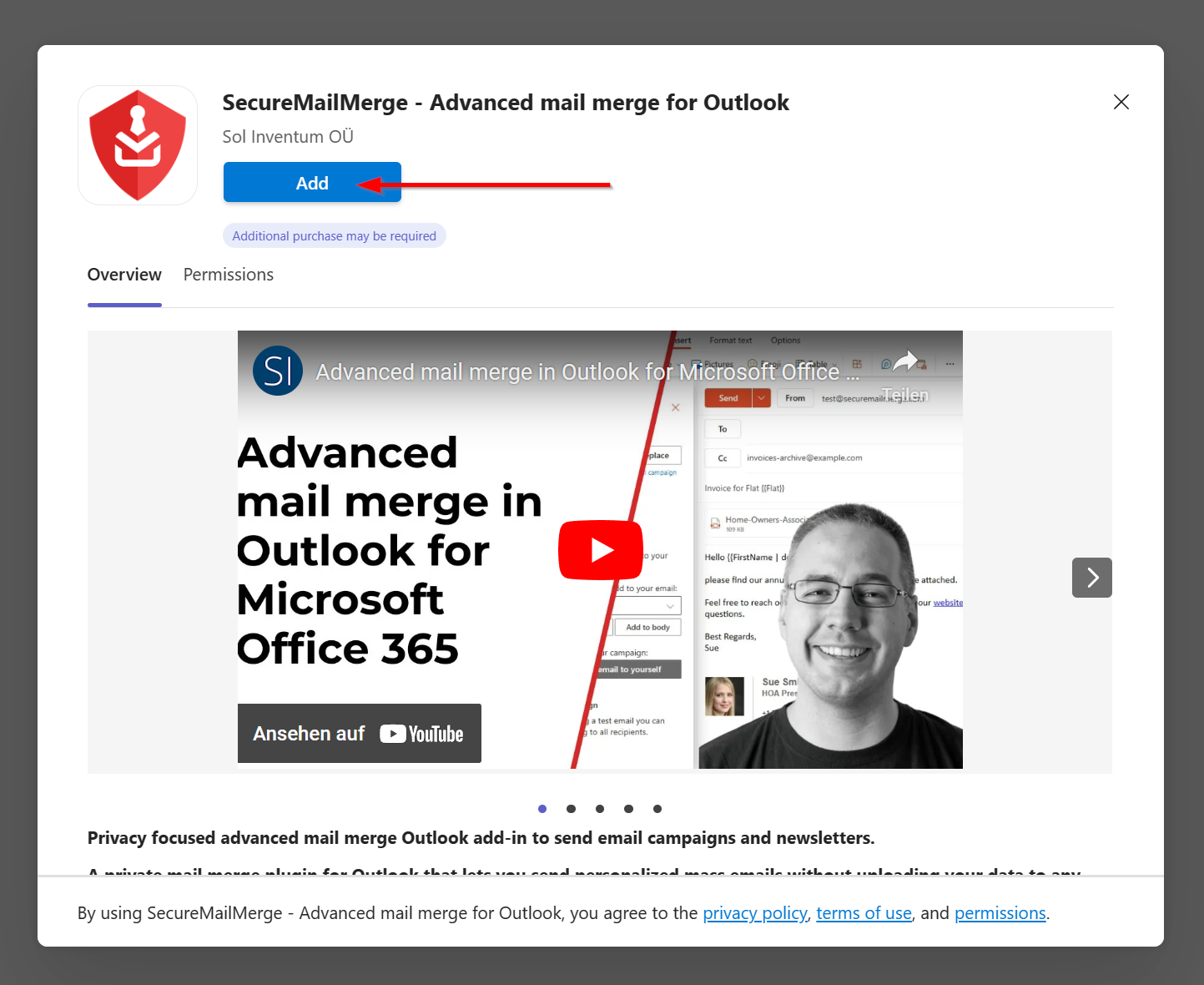
Click the “Add” icon to install SecureMailMerge. Some organizations require a Microsoft 365 administrator to approve add-ins before users can install them. If you see an approval message instead of the add-in, see Why am I seeing “Need Admin Approval”?.
Once the installation is complete, a pop-up will appear indicating the result. You can now close the window and compose a new message to see the SecureMailMerge plugin in your ribbon (or under “All Apps”).
Ready to try SecureMailMerge yourself?
SecureMailMerge for Outlook
Runs inside Outlook, with no external app needed.
Free version, no credit card. A license removes the promotional footer.