Know how directly from the Microsoft 365 mail merge experts
How to Send a Mass Email in Outlook: 3 Ways Compared
By Alex Duggleby · Founder, SecureMailMerge
TL;DR
- Outlook has three ways to send a mass email: a contact group, BCC, or a mail merge.
- Contact groups and BCC send one shared email; a mail merge sends an individual, personalized email to every recipient.
- For anything customer-facing, use a mail merge: it looks personal, keeps addresses private, and tends to fare better with spam filters than a BCC blast.
You have a list of people and one message to get out. What is the right way to do that in Outlook?
It depends on whether recipients may see each other, whether the message should feel personal, and how many you are sending. This guide walks through all three methods and when each one is the right choice.
The 3 ways to send a mass email in Outlook
| Method | Recipients see each other? | Personalized? | Best for |
|---|---|---|---|
| Contact group | Yes, everyone | No | Small internal teams |
| BCC | No, but it reads as a broadcast | No | Quick one-off notices |
| Mail merge | No, each gets their own email | Yes, per recipient | Customers, clients, larger lists |
Method 1: Contact group or contact list
A contact group is a saved list of addresses you can put in the To field. In New Outlook and Outlook on the web it is called a contact list.
- In People, create a New Contact Group (Classic Outlook) or a New contact list (New Outlook and Outlook on the web).
- Add members, save, and address a new email to the group name.
The catch: when you send to a personal contact group, every recipient sees the full recipient list, everyone can reply-all, and nothing is personalized. Use it for internal teams, never for customer lists: exposing customer addresses this way can constitute a privacy breach.
Method 2: BCC
Put your own address in the To field and paste every recipient into BCC. Recipients cannot see each other.
The catch: the email typically arrives addressed to you or to “undisclosed recipients”, which reads as a broadcast to people and is a common bulk-mail pattern for spam filters. There is still no personalization, and one typo in the paste can leak your list into a visible field. If your goal is hiding recipients from each other, a mail merge is less likely to look like spam; see how to send a mass email individually in Outlook.
Method 3: Mail merge with Word and Outlook
A mail merge takes a list of recipients and sends each person their own email, with placeholders like a first name replaced by their data. Microsoft’s own version runs from Word.
- It needs desktop Word with Classic Outlook as the default mail app on Windows, or Word for Mac with Outlook for Mac.
- It does not work with New Outlook or Outlook on the web, because they have no Word email merge.
- It has no individual attachments or CC per recipient.
If you use New Outlook or Outlook on the web, or you need more than the basics, the built-in options run out quickly.
Why use SecureMailMerge for a mail merge
SecureMailMerge is an Outlook add-in that does the whole mail merge inside Outlook, so you do not need Word or Classic Outlook. No recipient ever sees another address, every message reads like it was written for them, and it adds things the built-in options cannot do, like individual attachments per recipient and CC/BCC per row. For the full picture, see the complete guide to mail merge in Outlook.
Requirements
SecureMailMerge works in Classic Outlook, New Outlook, Outlook for Mac and Outlook on the web, with a Microsoft 365 Business or Education mailbox. Outlook.com and Microsoft 365 Personal or Family accounts are not supported.
How to send a mass email with SecureMailMerge
Step 1: Install the add-in
Install it from Microsoft AppSource and open a new email. The free version includes every feature.
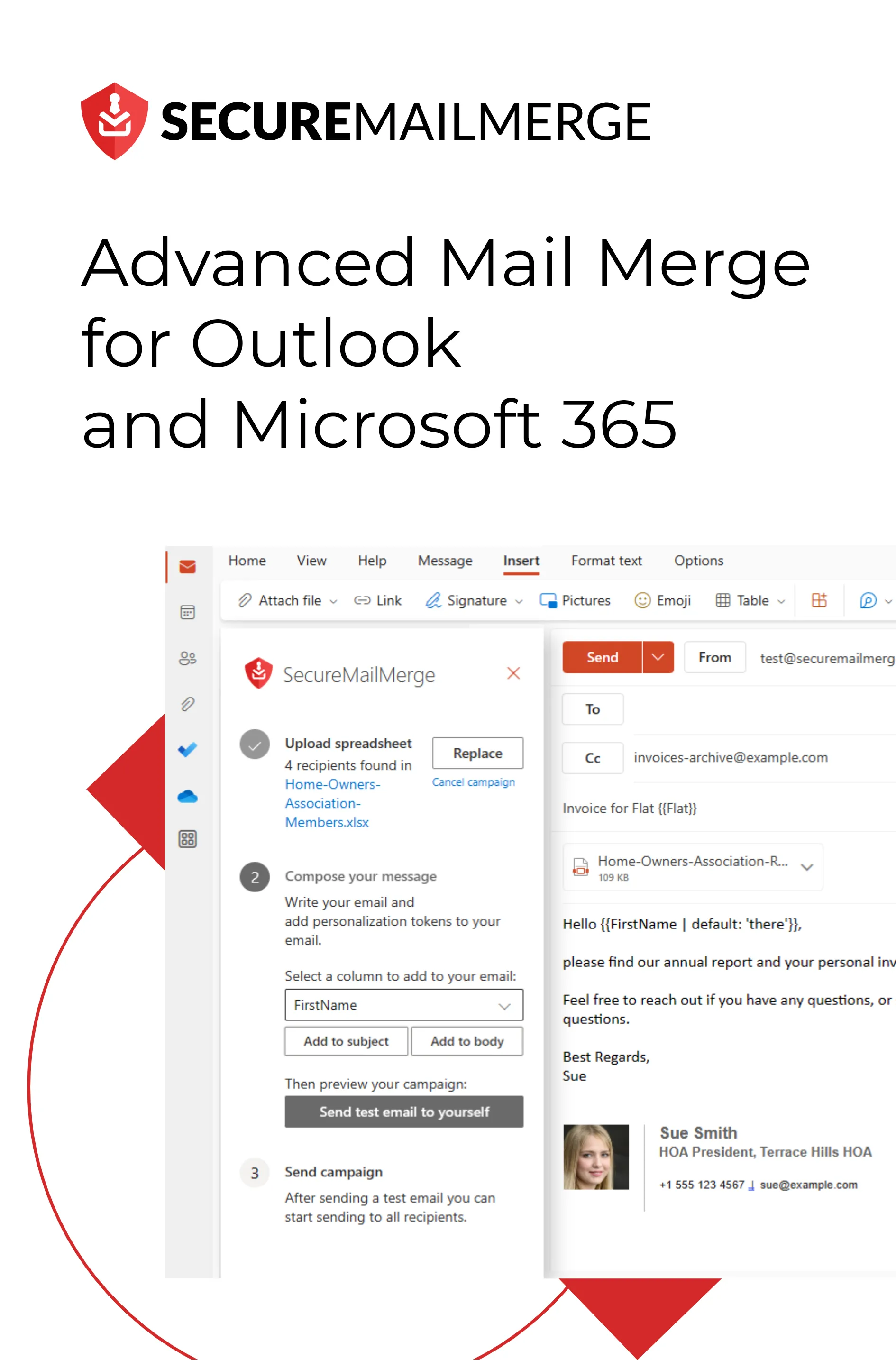
Step 2: Upload your spreadsheet
Use a spreadsheet with a To column and any personalization columns, or pick recipients from your Outlook contacts.
Step 3: Write your email
Write your email and insert merge fields like {{FirstName}} in the subject or body.
Step 4: Send a test email
Choose Send test email to yourself to check the result.
Step 5: Start the campaign
Choose Start sending campaign. Outlook sends one individual email per row, from your own mailbox, so replies come straight back to you.
Free version
The free version adds a short promotional footer to each email. A license removes the footer. SecureMailMerge is a native Microsoft add-in: your spreadsheet and message content are processed on your computer inside Outlook, and finished emails are sent through your own Microsoft 365 mailbox.
Microsoft’s sending limits
Microsoft 365 work and school accounts can typically send to 10,000 recipients per rolling 24 hours. Outlook.com allows up to 5,000 for Microsoft 365 subscribers and fewer without a subscription. Details: Outlook email sending limits.
Pacing a campaign with SecureMailMerge
- Pace your sending. Blasting hundreds of emails in a minute can look like spam to receiving servers. SecureMailMerge can add a delay between messages and cap how many are sent per day.
- Avoid spam triggers. Personalized individual emails already help; for the rest, see how to avoid landing in spam.
Frequently asked questions
What is the best way to send a mass email in Outlook?
For anything beyond a small internal group, a mail merge. It sends individual personalized emails, keeps your recipient list private, and tends to behave better with spam filters than BCC blasts.
How many people can I send a mass email to in Outlook?
Microsoft 365 work and school accounts are typically limited to 10,000 recipients per rolling 24 hours and 500 recipients per single message (500 is the default; admins can raise it to 1,000). A mail merge sends one message per recipient, so the daily recipient limit is the one that matters. See the full breakdown of Outlook sending limits.
Can I send a mass email in Outlook for free?
Yes. Contact groups and BCC are built into every Outlook, and the free version of the SecureMailMerge add-in includes every feature and adds a short promotional footer to each email; a license removes the footer. SecureMailMerge needs a Microsoft 365 Business or Education mailbox. The Word mail merge needs desktop Word with Classic Outlook as the default mail app on Windows, or Word for Mac with Outlook for Mac. It does not work with New Outlook or Outlook on the web.
Can recipients tell it was a mass email?
With a contact group or BCC, yes, immediately. With a mail merge, each recipient receives a normal individual email addressed only to them, personalized with their own data.
Enjoyed this article?
We have a whole library of useful articles for you to read
Show me the library of Outlook articles