Adding attachments to your mail merge
Easily add attachments to your mail merge in SecureMailMerge by including them in your email template or using drag and drop in Outlook.
Adding an attachment to the email template
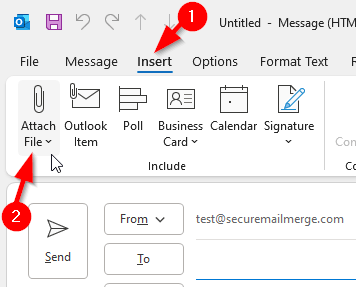
One option is to simply drag and drop a file from the file explorer into the email window. Another option is to use the “Attach file” menu from the “Insert” ribbon menu.
Select “Browse this PC” to select the file or multiple files from your computer.
Adding an attachment in New Outlook
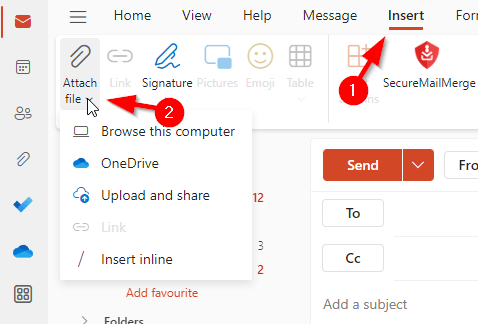
This also works in Outlook on the Web, Outlook for Mac and all New Outlook clients.
Select “Browse this PC” to select the file or multiple files from your computer.
Attachment visible in the email template
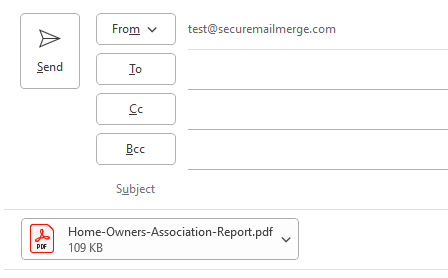
Once added the attachment will be visible in the email template. Any attachments you add or images you add to the email will be copied into the mail merge. Send yourself a test message to test this.
See also
- Sending mail merge with individual attachments per recipient
- Creating a mail merge template
- Getting started with SecureMailMerge
- Mail merge with attachments, complete guide
Ready to try SecureMailMerge yourself?
SecureMailMerge for Outlook
Runs inside Outlook, with no external app needed.
Free version, no credit card. A license removes the promotional footer.