Know how directly from the Microsoft 365 mail merge experts
Mail merge not sending emails: 5 causes and how to fix each
By Alex Duggleby · Founder, SecureMailMerge
You clicked Finish & Merge, Word reported nothing, and Sent Items is still empty. If your Word mail merge is not sending emails, the most common cause in 2026 is New Outlook. Word hands each message to Outlook through MAPI, which classic Outlook supports and New Outlook does not, so the merge either queues in classic Outlook or sends nothing at all. Work through the five checks below in order; most take a few minutes. If you would rather skip the Word-to-Outlook hand-off, the section further down shows how to send from Outlook itself; the full guide to mail merge in Outlook covers the rest.
Quick checklist: find your cause in 60 seconds
A Word mail merge not working can mean five different things. Match what you see to the likely cause, then jump to that section.
| What you see | Likely cause | Go to |
|---|---|---|
| Finish & Merge runs, no error, nothing in Sent Items or Outbox | New Outlook (no MAPI) | Cause 1 |
| ”There is no default mail client” error, or the wrong app opens | Outlook is not the default mail app | Cause 2 |
| ”Send Email Messages” is greyed out under Finish & Merge | No recipient list, wrong document type, or no usable mail program | Cause 3 |
| Classic Outlook opens, messages wait in the Outbox | Offline, or a sending limit was reached | Cause 4 |
| Repeated allow/deny prompts, sends blocked | Security prompts or antivirus | Cause 5 |
Cause 1: You’re in New Outlook (mail merge not working with New Outlook)
Word’s email merge does not run in New Outlook. Word passes every merged message to Outlook through MAPI, a Windows messaging interface that classic Outlook implements and New Outlook does not. New Outlook is built like Outlook on the web and has no MAPI layer, so the hand-off has nowhere to go. Microsoft’s New and classic Outlook feature comparison lists mail merge as only “Partially available” in New Outlook.
Word
MAPI hand-off
Classic Outlook
What happens depends on what is installed:
- Classic Outlook is installed too: Word usually hands the merge to it. Open classic Outlook and check the Outbox.
- Only New Outlook: Word shows an error, greys out Send Email Messages, or completes without sending anything.
How to check which Outlook you have
Look at the top right of the Outlook window. If you see a New Outlook toggle switched on, you are in New Outlook. Classic Outlook has a File tab at the left of the ribbon and a Send / Receive tab. New Outlook has neither tab.
New Outlook
Classic Outlook
Fix A: switch to classic Outlook
- In New Outlook, turn off the New Outlook toggle at the top right. Classic Outlook opens.
- Make classic Outlook your default mail app (see Cause 2).
- Run Mailings, Finish & Merge, Send Email Messages again in Word.
- Keep classic Outlook open until the Outbox is empty.
Microsoft has committed to supporting classic Outlook in Microsoft 365 until at least 2029, so this works for now. It is not a long-term plan: your organization can remove the toggle, and Outlook on the web has no classic option. The full background is in Word mail merge and New Outlook.
Fix B: use a mail merge add-in inside New Outlook
New Outlook’s basic mail merge sends one identical copy per recipient and cannot read a spreadsheet. An Outlook add-in such as SecureMailMerge reads the spreadsheet inside the compose window instead. The steps are further down this page.
Cause 2: Outlook isn’t the default mail app
Word sends through whichever program Windows treats as your default email app. Microsoft’s own mail merge instructions say you need a MAPI-compatible email program installed, and that Outlook must be your default email program and the same version as Word if your recipients come from Outlook contacts. If a browser, New Outlook or another app without MAPI support is the default, Word cannot hand over the messages.
The typical symptom is this error, which Microsoft lists in an archived troubleshooting article:
Either there is no default mail client or the current mail client cannot fulfill the messaging request. Please run Microsoft Outlook and set it as the default mail client.
Word cannot hand over
Word sends
Steps to set classic Outlook as the default on Windows 11:
- Open Settings, Apps, Default apps.
- Type mailto in the search box.
- Select the current app next to MAILTO and choose Outlook (classic).
- Restart Word and run the merge again.
If Outlook (classic) is not in the list, it is not installed. Ask your IT team, or use Fix B above.
Cause 3: Finish & Merge “Send Email Messages” is greyed out
When Send Email Messages under Finish & Merge cannot be selected, Word is missing one of three things. Check them in order:
- No recipient list is connected. Choose Select Recipients, Use an Existing List and pick your Excel sheet. Word keeps the finish commands unavailable until a list is attached.
- The document type is not email. Choose Start Mail Merge, E-mail Messages, so Word builds an email merge rather than letters.
- No usable mail program. If New Outlook or an app without MAPI support is your default, Word has nothing to send through. Fix it with Cause 2.
Once enabled, the To box in the send dialog lists your spreadsheet columns. Pick the column that holds email addresses. If none appears, check the header row in Excel; our Word mail merge guide walks through the full setup.
Cause 4: Mail merge stuck in Outbox or sending limits
If classic Outlook opens and the messages sit in the Outbox, Word did its part. The mail merge emails are not going out because Outlook is holding them back, for one of two reasons.
Outlook is offline or closed
Open the Send / Receive tab and make sure Work Offline is not highlighted. Then keep Outlook open until the Outbox empties; closing it stops the queue.
You hit a Microsoft sending limit
Exchange Online, which runs Microsoft 365 work and school mailboxes, allows by default up to 10,000 recipients per rolling 24 hours and throttles sending above 30 messages per minute (Exchange Online limits). A mail merge counts one recipient per row.
10,000
recipients per 24 hours
Rolling window. A mail merge counts one recipient per row.
30
messages per minute
Sending above this is throttled.
Going over the daily limit produces a bounce saying “the sender’s submission quota was exceeded”, often with the code:
554 5.2.0 STOREDRV.Submission.Exception:SubmissionQuotaExceededExceptionMicrosoft’s fix is to wait one day until the 24-hour window frees up, then send the rest. Your tenant may set lower limits. For the full numbers and pacing strategies, see Outlook email sending limits, and for SecureMailMerge specifics see mail merge campaign limits. Bounces in the 5.7.x range are a different problem, covered in why a mail merge bounces.
Cause 5: Security prompts and antivirus
Classic Outlook may show this warning when another program sends through it:
A program is trying to send an e-mail message on your behalf. If this is unexpected, click Deny and verify your antivirus software is up-to-date.
According to Microsoft, it appears when Outlook detects that your antivirus is inactive or out of date. Choosing Deny blocks the send. Steps to check your antivirus status:
- In classic Outlook, select File, Options.
- Select Trust Center, Trust Center Settings, Programmatic Access.
- If Antivirus status is anything other than Valid, enable or update your antivirus.
Microsoft does not recommend switching the prompt off permanently. On a work PC these settings are usually managed by IT, so ask them rather than editing the registry.
How to avoid mail merge sending problems: send from Outlook itself
Every cause above comes from the hand-off between Word, Windows and Outlook. SecureMailMerge, published on Microsoft AppSource, removes that chain: it reads your spreadsheet inside Outlook and sends from your own Microsoft 365 mailbox. It works the same in classic Outlook, New Outlook, Outlook on the web and Outlook for Mac.
Word mail merge
Word, then Windows, then classic Outlook
SecureMailMerge
Spreadsheet, then the add-in inside Outlook, then your Microsoft 365 mailbox
Step 1: Install SecureMailMerge
Install the add-in from Microsoft AppSource. It needs a Microsoft 365 work or school mailbox; see installing the add-in if your organization manages add-ins.
Step 2: Upload your spreadsheet
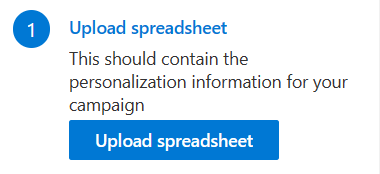
Open a new email, start SecureMailMerge and select “Upload spreadsheet”. Your file needs a header row and a column called “To” with the email addresses; the getting started guide shows an example sheet.
| To | FirstName |
|---|---|
| [email protected] | Anna |
| [email protected] | Ben |
Example sheet: a header row, and a To column with one address per row.
Step 3: Write the email and insert fields
Write your message in the compose window and insert columns from the dropdown as personalization tokens such as {{FirstName}}, in the subject or the body.
Step 4: Send yourself a test
Select “Send test email to yourself” to check tokens, formatting and attachments before the real send.
Step 5: Set a daily limit for large lists
For large lists, open the advanced options, go to “Schedule” and then “When to send”, and tick “Limit how many are sent each day”. Anything over the cap moves to the next sending day, which helps keep you under Microsoft’s daily limit. Details in sending during specific hours and days.

Step 6: Start sending
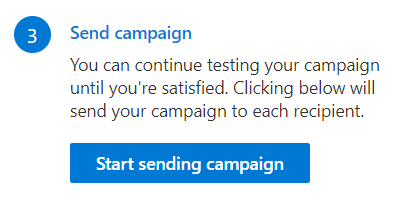
Select “Start sending campaign”. Each recipient gets their own email from your address, with a copy in your Sent Items.
The free version includes every feature and adds a short promotional footer; a licence removes it (pricing).
Still not sending? What to tell support
Whoever helps you, your IT team or the SecureMailMerge team, will fix it faster with these details:
- Which Outlook: classic or New Outlook, and Windows or Mac.
- Your default mail app: what Windows shows next to MAILTO.
- Where the messages are: Outbox, Sent Items, Drafts, or nowhere.
- The exact error text or bounce code, copied rather than paraphrased.
- How many recipients you sent to in the past 24 hours.
- Whether a single test email to yourself arrives.
If you use SecureMailMerge, download the send report and, if asked, send a network log to support.
Frequently asked questions
Why does my mail merge say it sent but no emails arrive?
Word handed the messages to a mail program that could not send them. If classic Outlook is installed, check its Outbox. If only New Outlook is installed, nothing was sent, because New Outlook has no MAPI.
Why is “Send Email Messages” greyed out in Word?
Usually no recipient list is connected, the merge type is not E-mail Messages, or classic Outlook is not your default mail app. Fix those three and the command becomes available.
How do I get mail merge emails out of the Outbox?
Turn off Work Offline on the Send / Receive tab and keep classic Outlook open until the Outbox empties. If it still stalls, you may have reached Microsoft’s daily recipient limit; wait for the 24-hour window to clear.
Does Word mail merge work on Mac?
Partly. Word for Mac can merge to email only with a supported email program, normally Outlook for Mac, set as the default; otherwise Merge to E-Mail is unavailable. SecureMailMerge runs inside Outlook for Mac directly.
Does SecureMailMerge have the same sending limits?
Yes. It sends through your own Microsoft 365 mailbox, so Microsoft’s limits apply, such as 10,000 recipients per rolling 24 hours by default. SecureMailMerge adds no limits of its own and can cap daily sending.
Enjoyed this article?
We have a whole library of useful articles for you to read
Show me the library of Outlook articles