Know how directly from the Microsoft 365 mail merge experts
How to mail merge multiple rows into one email per recipient (many-to-one)
By Alex Duggleby · Founder, SecureMailMerge
One customer with five open invoices. One investor with twelve holdings. One borrower with three overdue books. Your spreadsheet has a row for each, but that person should get one email listing them all, not five separate ones. To mail merge multiple rows to one recipient like this, group the rows by email address and insert them as a table in a single message.
A customer's open invoices
An investor's holdings
A borrower's overdue books
The same pattern covers membership renewals sent to one contact for several members of an organization, and backorder or delivery reports for distributors with one line per product.
Word’s built-in merge can’t do it, because it sends one email per row. In Outlook, SecureMailMerge spots repeated addresses and offers a many-to-one mode that does the grouping for you.
What many-to-one mail merge means
A standard mail merge is one-to-one: one row, one email. A many-to-one merge groups rows that share the same recipient and sends that person a single email listing every row. Take a library reminder list with six rows for three borrowers:
| Rows in the spreadsheet | One-to-one merge | Many-to-one merge |
|---|---|---|
| 3 rows for alex@ | 3 emails, one book each | 1 email with a 3-row table |
| 1 row for mary@ | 1 email | 1 email with a 1-row table |
| 2 rows for john@ | 2 emails, one book each | 1 email with a 2-row table |
| Total: 6 rows | 6 emails | 3 emails |
3 rows for alex@
| To | Book | Due |
|---|---|---|
| [email protected] | Dune | 3 Mar |
| [email protected] | Emma | 10 Mar |
| [email protected] | Ulysses | 17 Mar |
1 email with a 3-row table
Subject: Your library books
Hi Alex, three books are due soon.
| Book | Due |
|---|---|
| Dune | 3 Mar |
| Emma | 10 Mar |
| Ulysses | 17 Mar |
Alex’s three rows (Dune, Emma and Ulysses) become one email with a three-row table.
The same idea goes by several names, which is why it is hard to search for:
- Many-to-one mail merge: many data rows, one email per recipient.
- One-to-many mail merge: the same task seen from the recipient’s side.
- Directory or catalog merge: Word’s closest built-in concept, which lists records in one document rather than in individual emails.
- Group rows by email: the database way of saying it.
What Word’s mail merge can do, and why it isn’t enough
Word has no “group by recipient” option: each row becomes its own email. Word’s email merge works with classic Outlook for Windows and Outlook for Mac, but not with New Outlook or Outlook on the web.
Two workarounds exist, both in desktop Word:
- The Merge Tools add-in by Doug Robbins, a Microsoft MVP, adds a “Many to One” merge type. Details: Merge Tools add-in alternative.
- A Directory merge puts all records into a single document, such as a catalog or parts list. Microsoft notes that the other Finish & Merge options, including sending email, can’t be used with it, so you still send each section yourself.
| Word + Merge Tools add-in | Word Directory merge | |
|---|---|---|
| Groups rows per recipient | Yes, “Many to One” merge type | Into one document, not per-person emails |
| Sends individual emails | Yes, through classic Outlook | No |
| New Outlook, Mac, web | No, Windows with classic Outlook only | No |
| Table of rows in the email | Built in the Word document | Field codes in the document |
| Attachments, CC, BCC | Yes for email merges | No |
| Where data is processed | Locally in Word | Locally in Word |
| Cost | 20-use trial, then US$30 one time (one user) | Included with Word |
For the plain Word method, see mail merge in Word.
That is why you need an add-in inside Outlook that groups the rows for you.
How to send a many-to-one mail merge with SecureMailMerge (5 steps)
These steps use the SecureMailMerge add-in, which runs inside classic Outlook, New Outlook, Outlook for Mac and Outlook on the web. For click-by-click screenshots of every screen, see the help page Mail merge many-to-one: combine rows into one email.
Step 1: Prepare the spreadsheet
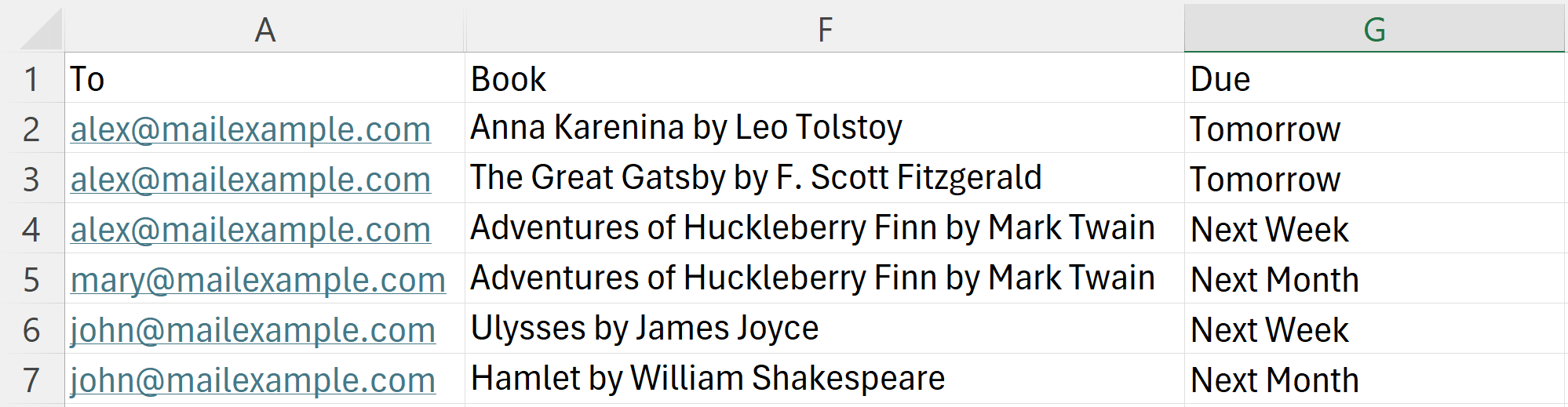
Put column headers in row 1 and one row per item below. Type the same email address in the To column for every row that belongs to the same person. Optional columns named Attachments, CC and BCC work too.
Step 2: Upload the spreadsheet in Outlook
In Outlook, open a new message, start SecureMailMerge from the Apps menu and under “Upload spreadsheet” click “Use spreadsheet”. Select your Excel or CSV file.
Step 3: Choose many-to-one mode
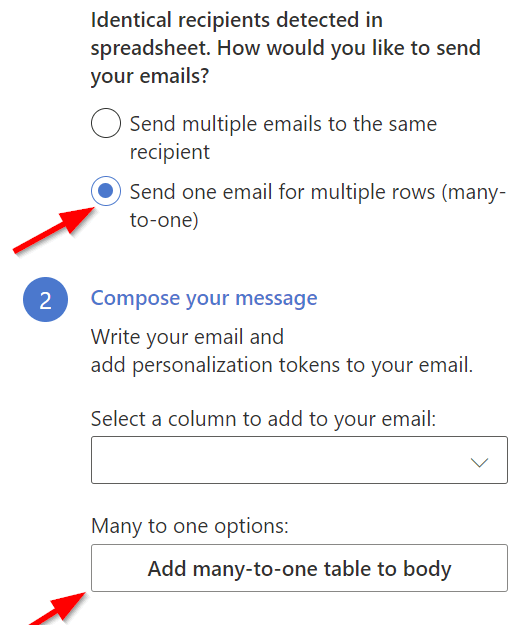
When the add-in finds the same address on more than one row, it asks “Identical recipients detected in spreadsheet. How would you like to send your emails?” Choose “Send one email for multiple rows (many-to-one)”. If no address repeats, the question does not appear; click “Show advanced options” and tick “Force many-to-one table mode” under “Message options” instead.
Step 4: Insert the mail merge table
Write the email and place the cursor where the table should go. Click “Add many-to-one table to body”, tick the columns in the order they should appear, click “Add table to Body”, then “Return to campaign settings”.
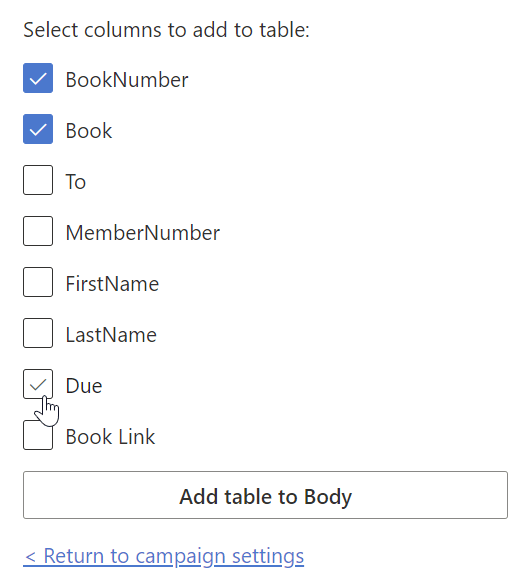
The add-in inserts a table token such as {% table Book, Due %}. When each email is merged, it becomes a mail merge table with multiple rows, one per spreadsheet row for that recipient, and your column names as headers.
Step 5: Send a test email, then start the campaign
Click “Send test email to yourself” and check the result, then click “Start sending campaign”. Afterwards, download the send report: it keeps one line per original spreadsheet row, even when several rows formed one email.
Test tip: the test email uses the first data row
The test email is built from the recipient in the first data row (row 2, under the headers) and includes all of that recipient’s rows. Put a contact with several rows at the top of the sheet so the test actually shows the grouped table.
What happens to tokens, attachments, CC and BCC
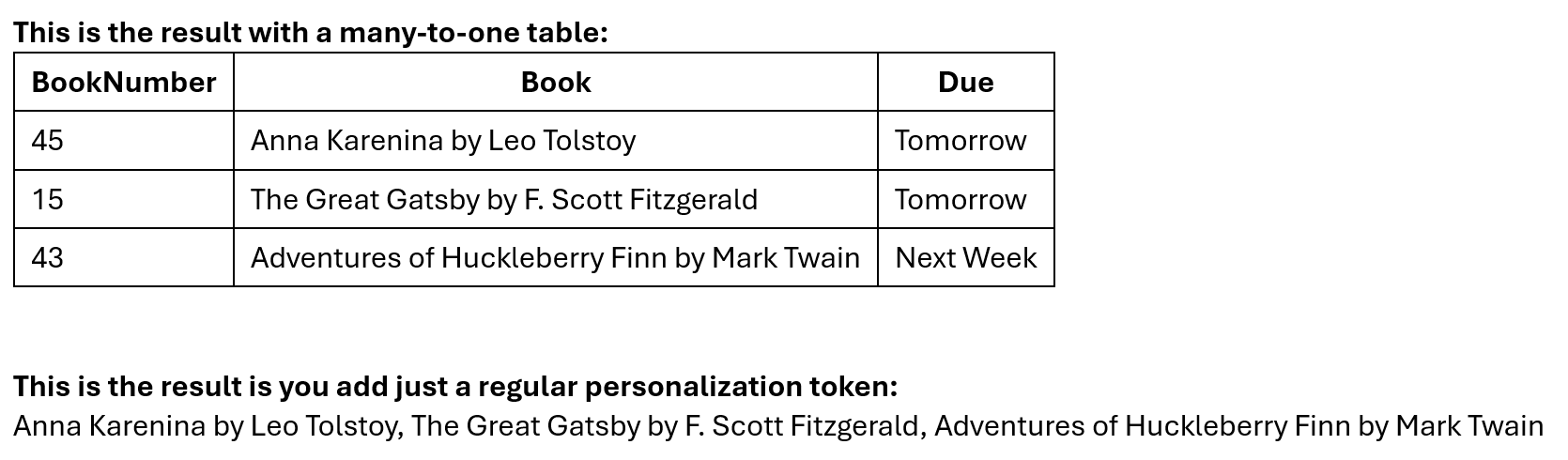
The table token renders each row as a table row. Ordinary tokens like {{Amount}} are joined into comma-separated text across the recipient’s rows. If every row holds the same value, such as {{FirstName}}, it appears once, so “Hi Alex” still reads naturally.
The columns named Attachments, CC and BCC are combined instead of joined: every unique file and address from all of a contact’s rows goes into the one email. Identical entries are included only once (matching is exact, including capitalization). A cell can also hold several values separated by semicolons. See individual attachments and multiple CC or BCC recipients.
2 rows for [email protected]
| Attachments | CC |
|---|---|
| statement.pdf | [email protected] |
| statement.pdf;terms.pdf | [email protected] |
1 email
Attachments: statement.pdf, terms.pdf
Identical entries are included only once.
Limitations of SecureMailMerge’s many-to-one mode
- Rows are grouped by the exact To value. Type each address the same way on every row, or the add-in treats them as different people.
- The table has one fixed style. The add-in renders a simple bordered table with a header row from your column names. There are no table styling options in the add-in.
- Grouped values count once per email. A contact with ten rows gets one email, so ten rows use one recipient of your daily quota (plus any CC or BCC addresses), not ten.
- Sending limits still apply. SecureMailMerge adds no limits of its own; your Microsoft 365 tenant’s sending limits still apply, and so does the maximum message size once attachments are combined.
One contact with 10 rows
Next steps
Group the rows, insert the table, send a test with a multi-row contact at the top, and you are done. See pricing for the licence that removes the footer.
Related guides:
- Full guide: mail merge in Outlook
- Mail merge in New Outlook
- Personalized attachments in a mail merge
- Download the send report
Frequently asked questions
Can Word mail merge put multiple rows in one email?
Not natively. Word creates one email per row. To group rows per recipient you need a workaround such as Doug Robbins’ Merge Tools add-in, or an Outlook add-in with a many-to-one mode.
What is the difference between many-to-one and one-to-many mail merge?
They describe the same task from different angles: many spreadsheet rows merged into one email per recipient. Word’s Directory merge is the closest built-in concept, but it creates a single document.
How does SecureMailMerge know which rows belong together?
It groups rows by the To column. When the same address appears on more than one row it offers many-to-one mode; otherwise tick “Force many-to-one table mode” in the advanced options.
Can each recipient get different attachments from different rows?
Yes. All unique files listed in the Attachments column across a contact’s rows are attached to that one email. Identical files, CC and BCC addresses are included only once.
Does this work in New Outlook or Outlook for Mac?
Yes. SecureMailMerge runs in classic Outlook, New Outlook, Outlook for Mac and Outlook on the web, so many-to-one merges don’t depend on Word or Windows.
Is many-to-one mail merge free?
Yes. The free version includes every feature and adds a short promotional footer to each email; a paid licence removes the footer.
Enjoyed this article?
We have a whole library of useful articles for you to read
Show me the library of Outlook articles