Know how directly from the Microsoft 365 mail merge experts
Merge Tools add-in by Doug Robbins: what it does and an Outlook-native alternative
By Alex Duggleby · Founder, SecureMailMerge
The Merge Tools add-in by Doug Robbins is a Word add-in that adds attachments, CC, BCC, many-to-one and merge-to-PDF to Word’s mail merge. It is the fix many people find on Microsoft Q&A when Word’s merge cannot attach a file, and it does the job as long as you run desktop Word on Windows and send through classic Outlook (US$30 for one user after a 20-use trial). If your team has moved to New Outlook, a Mac or the web, SecureMailMerge is an Outlook add-in alternative that covers the same jobs there.
What Merge Tools is and where it stops working
Merge Tools is a macro-based Word add-in written by Doug Robbins, who answers mail merge questions on Microsoft Q&A. You download it from the author’s own website, install it in Word, and a Merge Tools tab appears on the ribbon. From there you run Word’s normal mail merge with extras Word alone cannot do: individual attachments per recipient, CC and BCC from your data, a personalized subject, many-to-one merges (one invoice listing several rows for the same customer), scheduled sending, and merging to individual Word or PDF files.
The catch is where it can run:
- Windows only. It needs desktop Word on a Windows PC. The author’s FAQ says it cannot run on a Mac.
- Classic Outlook only. It sends through classic Outlook for Windows. It cannot send through New Outlook, Outlook on the web or Outlook for Mac. See mail merge in New Outlook for what changes there.
- Macros must be allowed. Many companies block macro add-ins, so it can be hard to get approved at work.
- Installed per user, supported by the author. There is no built-in central rollout; each user installs it, and help comes by email.
When Merge Tools is the better fit
For some jobs Merge Tools is still the right tool:
- You need document generation, not email. Merge Tools can create individual PDF or Word documents from a Word template and save them to disk, add per-record charts, and produce collated print output. SecureMailMerge is for sending email: it attaches the PDF, Word or other files you already have to each recipient’s email, but it does not generate documents.
- You use classic Outlook on Windows and plan to stay there. There it covers attachments, CC and BCC, many-to-one and deferred sending for a one-time US$30 for one user, with no subscription.
- You do not have a Microsoft 365 work or school mailbox. Merge Tools sends through whatever account is set up in classic Outlook. SecureMailMerge requires a Microsoft 365 Business or Education mailbox.
When SecureMailMerge is the better fit
If your team has moved to New Outlook, a Mac or Outlook on the web, or macros are blocked at work, Merge Tools cannot run there. SecureMailMerge covers the same email jobs inside Outlook.
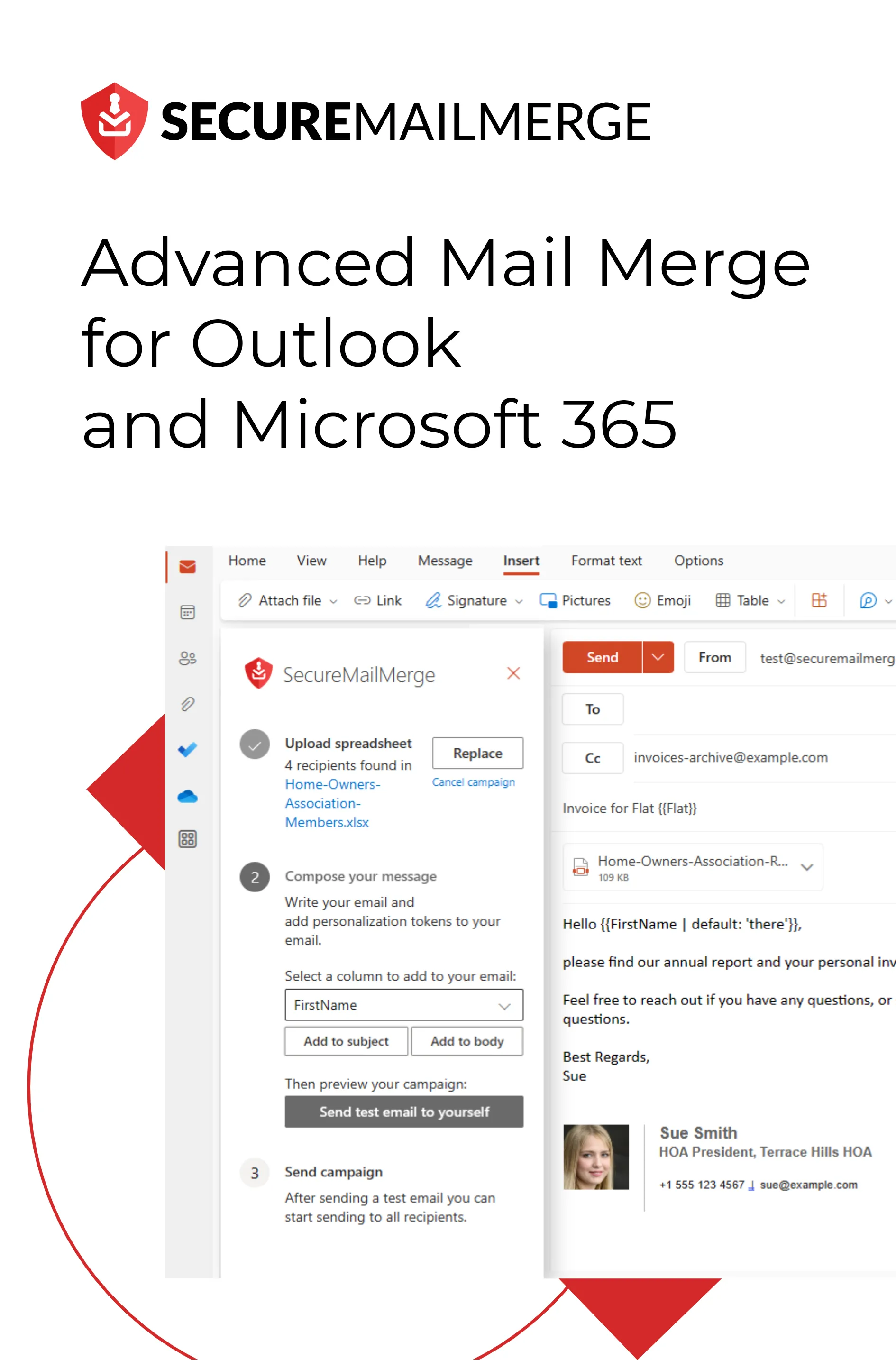
SecureMailMerge is an Outlook add-in from Microsoft AppSource. It runs inside the email you are writing in classic Outlook, New Outlook, Outlook for Mac and Outlook on the web. There is no Word document and no macro: you upload a spreadsheet, insert fields such as {{FirstName}} into the subject or body, and each recipient gets an individual email from your own mailbox. Administrators can deploy it to the whole organization in one go.
Merge Tools (Doug Robbins)
- Classic Outlook (Windows)
- New Outlook
- Outlook for Mac
- Outlook on the web
SecureMailMerge
- Classic Outlook (Windows)
- New Outlook
- Outlook for Mac
- Outlook on the web
How to do the three Merge Tools jobs in SecureMailMerge
People mostly use Merge Tools for individual attachments, many-to-one mail merge, and CC or BCC with a custom subject. All three work like this in Outlook.
Step 1: Install and open SecureMailMerge
Install the add-in from Microsoft AppSource, or ask your administrator to deploy it. In Outlook, click “New Email” and open SecureMailMerge from the Apps menu.
Step 2: Upload your spreadsheet
Under “Upload spreadsheet”, choose your Excel or CSV file. Column names go in the first row, and a column called “To” holds the email addresses.
Step 3: Add individual attachments
Add an “Attachments” column with each recipient’s filenames, separated by semicolons, without folder paths. After the upload, click “Add files” and select the files. The add-in lists any file that is still missing.
| To | CC | Attachments |
|---|---|---|
| [email protected] | [email protected] | invoice-anna.pdf;terms.pdf |
| [email protected] | invoice-ben.pdf |
One row per recipient. Several files in one cell are separated by semicolons, with no folder paths. The CC column is optional.
Step 4: Set up many-to-one, CC, BCC and the subject
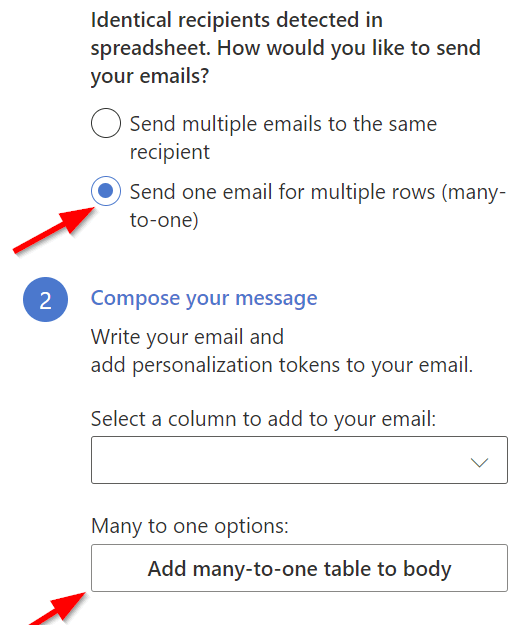
If several rows share a “To” address, choose “Send one email for multiple rows (many-to-one)” and use “Add many-to-one table to body”. Add “CC” or “BCC” columns for per-recipient copies, and use “Add to subject” to personalize the subject line.
Step 5: Test and send
Click “Send test email to yourself” to check the result, then click “Start sending campaign”.
Read more: individual attachments, mail merge multiple rows to one recipient and can you CC or BCC in a mail merge.
Switching checklist from Merge Tools
- Reuse your worksheet. Rename the email column to “To” and combine your attachment path columns into one “Attachments” column, with filenames only, separated by semicolons.
- Move your text into Outlook. Paste the body of your Word document into a new email and insert the fields again.
- Recreate scheduling. “Start sending on” and “Delay between messages” replace “Defer Sending”; see how to schedule a mail merge in Outlook.
Merge Tools vs SecureMailMerge at a glance
| Merge Tools | SecureMailMerge | |
|---|---|---|
| Runs in | Word on Windows | Classic Outlook, New Outlook, Mac and web |
| Sends through | Classic Outlook | Your Microsoft 365 mailbox |
| Data source | Excel or Access | Excel, CSV or contacts |
| Individual attachments | Yes | Yes |
| Many-to-one | Yes | Yes |
| CC and BCC per recipient | Yes | Yes |
| Attaches existing files per email | Yes | Yes |
| Generates PDF or Word documents | Yes | No |
| Install | Per user | AppSource, central deploy |
| Price | US$30 one time (one user) | Free, paid licenses remove footer |
Other Merge Tools add-in alternatives
Mail Merge Toolkit by MAPILab is the closest commercial equivalent: it also extends Word’s merge and is sold as a subscription. Our comparison of mail merge tools for Outlook lines up the main add-ins, and the complete guide to mail merge in Outlook covers Word’s built-in merge as well.
Frequently asked questions
Is the Merge Tools add-in free?
No. You can use it 20 times as a trial, after which a one-time payment of US$30 for one user gets you an unrestricted version.
Does Merge Tools work with New Outlook?
No. It only sends through classic Outlook for Windows. Outlook on the web and Outlook for Mac cannot run it either.
Does Merge Tools work on a Mac?
No. The author’s FAQ states that the add-in cannot be used on a Mac.
Where can I download the Merge Tools add-in?
From the author’s own website, which offers a zip file with the add-in and PDF instructions. Avoid copies hosted elsewhere.
Can SecureMailMerge send individual attachments like Merge Tools?
Yes. Add an Attachments column with the filenames for each recipient, upload the files after the spreadsheet, and each person receives only their own files.
Can SecureMailMerge save merged PDFs?
No. It sends personalized emails from Outlook and attaches each recipient’s existing PDF or Word files, but it does not generate new documents from a template. For document generation, Merge Tools remains the better choice.
Enjoyed this article?
We have a whole library of useful articles for you to read
Show me the library of Outlook articles